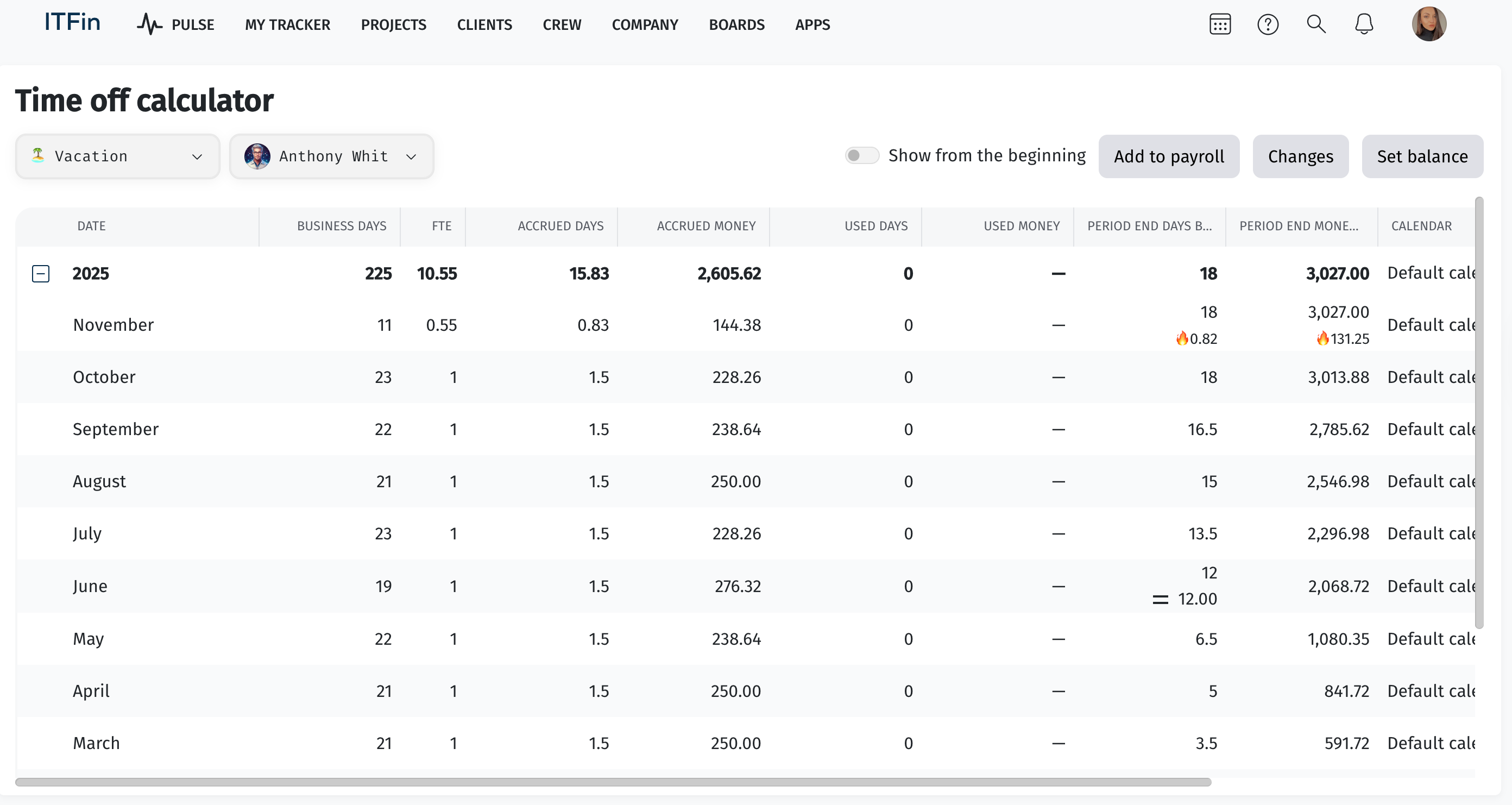
In the Time off calculator report, you can check the accrued vacation days, sick leave, and paid time off for each month per employee. You can view the compensation amount for both accrued and used days and set a new balance.
Interface overview
On the left side of the page, you need to select the employee for whom you want to perform the calculation, choose whether you want to calculate vacation, sick leave, or paid time off, and click Calculate.
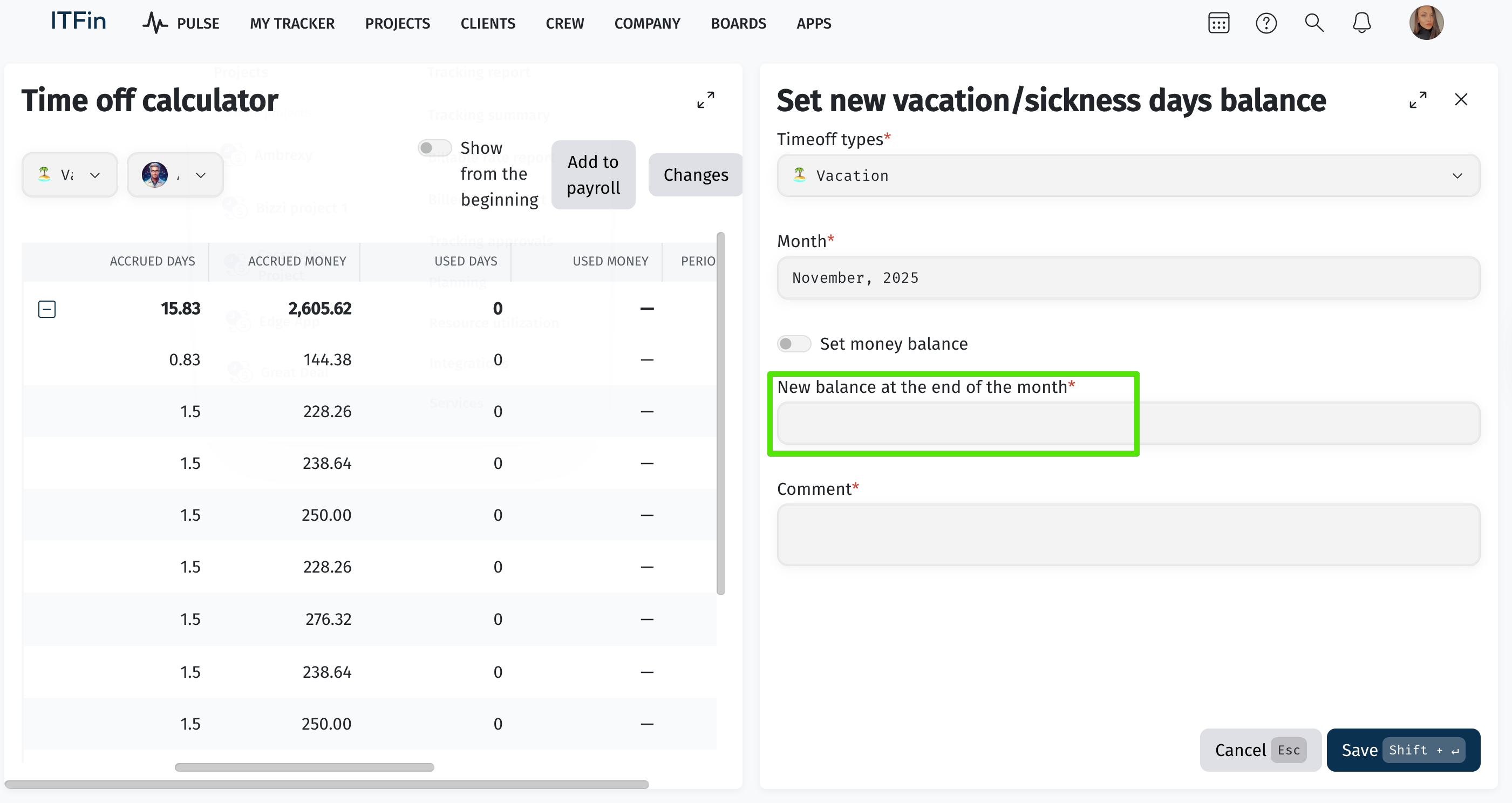
To manually set a new vacation or sick leave balance, use the Set balance option.
How to Adjust the Vacation or Time-Off Balance
When setting an employee’s balance manually, keep the following system rules in mind:
📝 Balance in reports
In the Time Off Calculator and Time Off Balance Report, the balance is calculated as:
accrued days (Accrued) minus used days (Used)
📝 Example with monthly accrual
If an employee is entitled to 18 vacation days per year, the system accrues 1.5 days per month.
For example:
– end of January — 1.5 days
– end of February — 3 days
– and so on
📝 How to set the balance
The balance is entered as the actual accrued days.
Example:
If the employee had 1.5 days accrued in January, used 2 days, and you want to add 2 bonus days, the new balance should be 1.5 days (because −0.5 + 2 = 1.5).
📝 The balance becomes effective at the start of the next month
A balance set as of the end of a month becomes active on the 1st day of the following month.
If the balance should reset on January 1 according to company policy, do not set it for December 31 — the system will not apply it.
📝 After updating the balance
Always check the result in the corresponding report.
How is vacation accrued?
The vacation balance is accrued monthly at a rate of 1/12 of the Maximum annual vacation days specified in the Time-off Policy in the system settings.
Daily accrual is calculated using the following formula:
Annual available vacation days / 12 months / number of working days in the employee’s calendar for that month
Example
Initial conditions:
• Maximum annual vacation days = 20
• Vacation balance resets at the beginning of the year
• Used vacation days = 0
The employee worked 15 working days in January and then resigned.
Accrual calculation for compensation:
20 vacation days / 12 months / 22 working days in January × 15 actual working days = 1.14 days
How to Add Vacation Compensation to the Payroll
In the Vacation Calculator, there is an option to add vacation compensation directly to the payroll.
This feature can be used in the following situations:
• When an employee is terminated — to compensate them for unused vacation days;
• By mutual agreement with the employee — to compensate unused vacation days from the previous year.
The compensation is included in the payroll calculation and is paid together with the employee’s salary.

Balance Change History in the Vacation Calculator
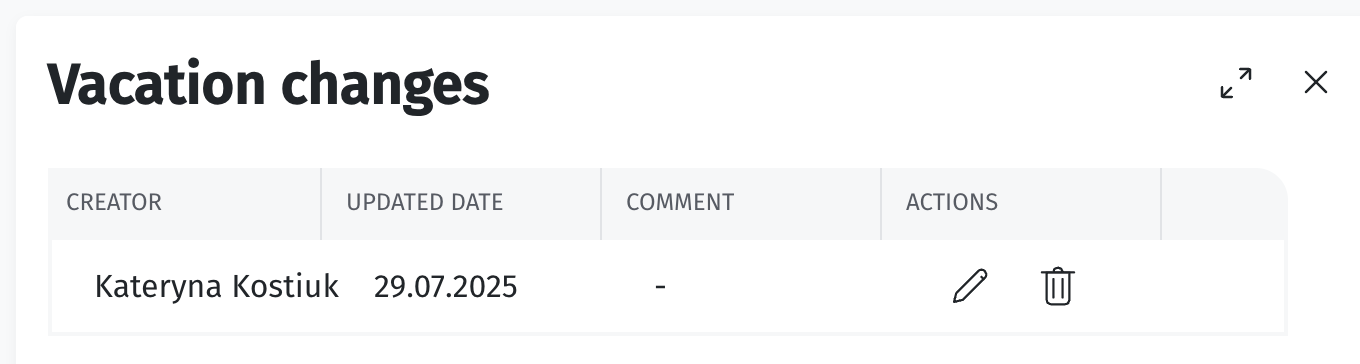
The Vacation Calculator includes a Change button that opens the balance change log.
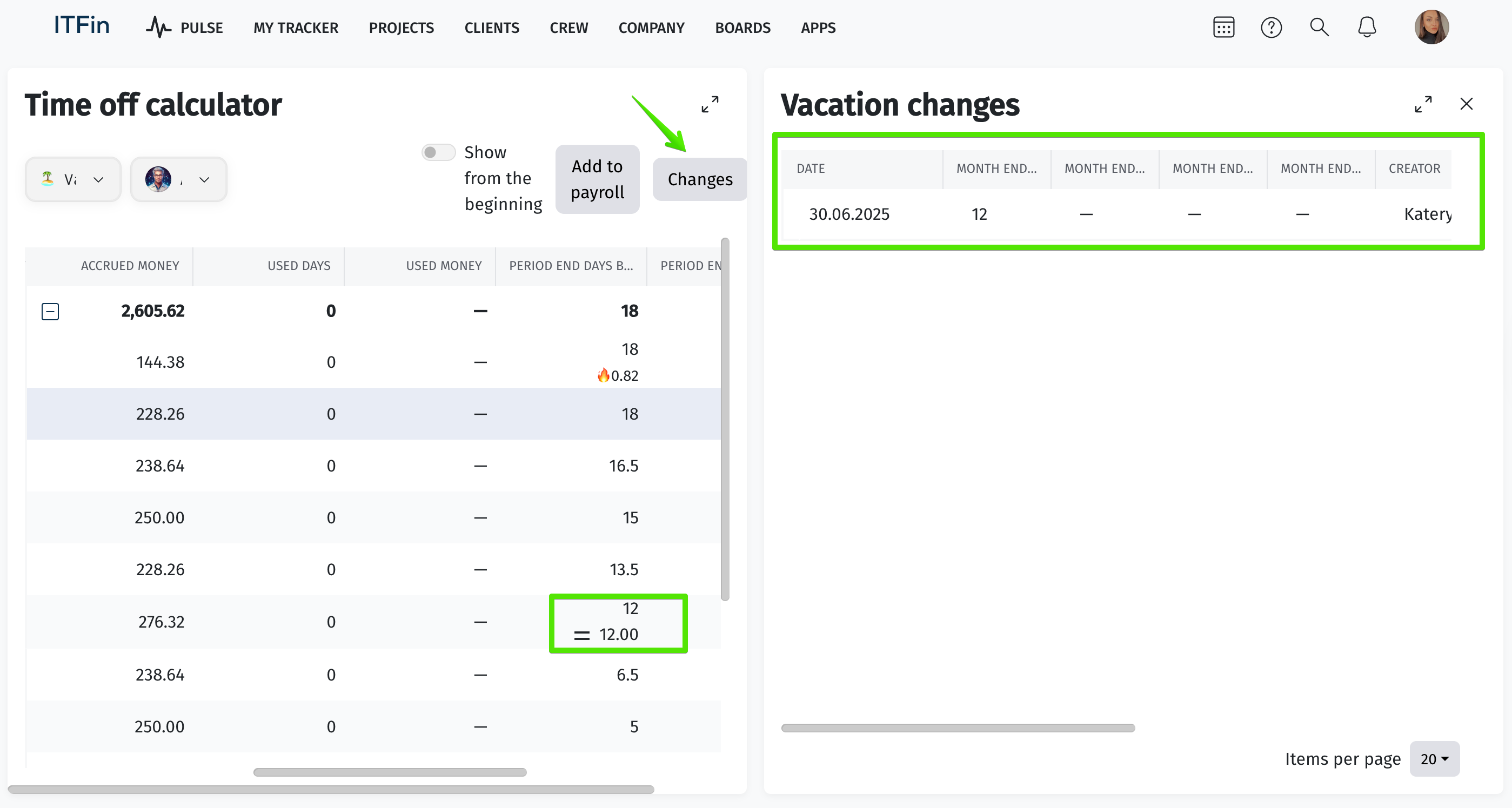
With this feature, you can:
• view all manual balance adjustments that were made
• see when and by whom each value was added or modified
• edit or delete an entry if it is no longer relevant or requires correction