The Salary Change report is designed to centralize and bring transparency to the salary review process at the company. It helps HR and management to:
• see, in a timely manner,
• all employees whose current compensation term is ending;
• compare previous and proposed salary amounts;
• record the reasons and comments behind each review;
• plan the company's budget based on updated salaries.
Access
For a person to appear in the review list, they must have an end date set for their compensation.
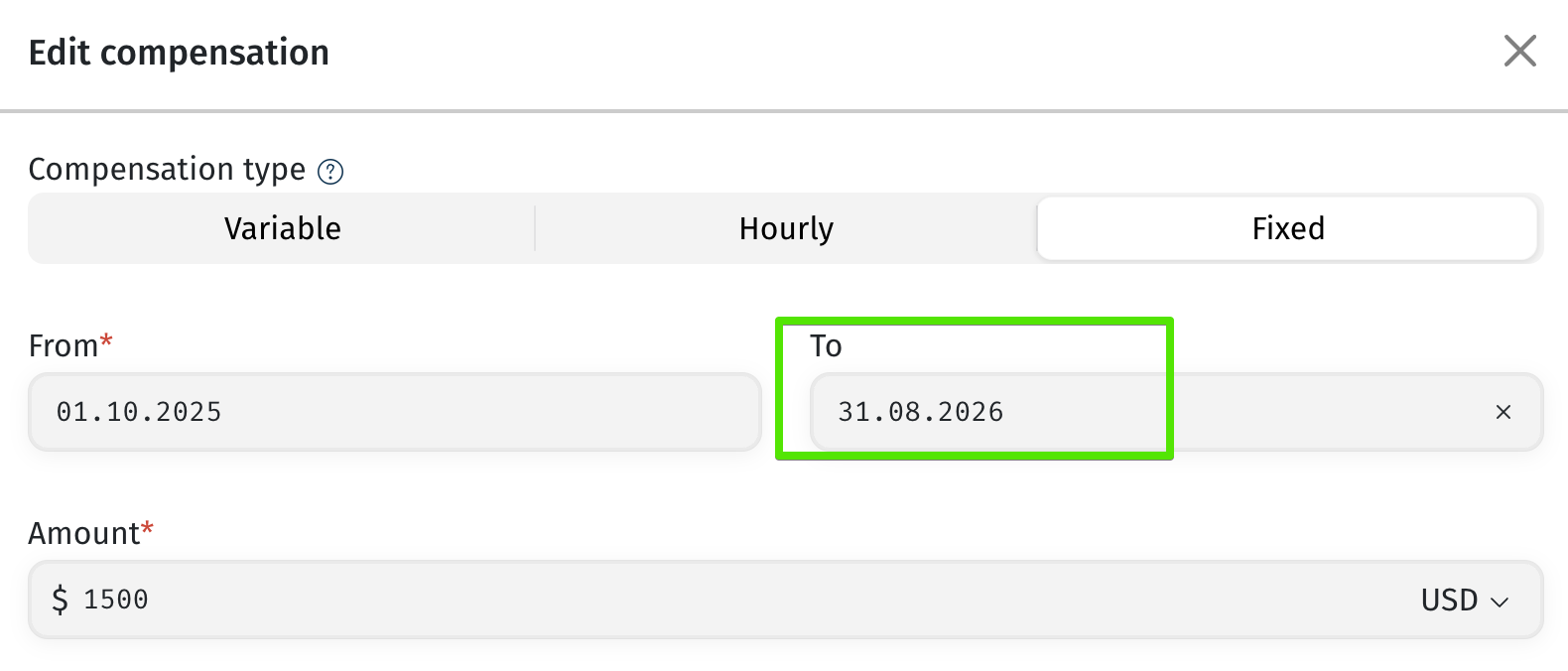
For example: if an employee's salary of $1,500 is set to end on August 31, the employee will appear in the report for review at the beginning of August.
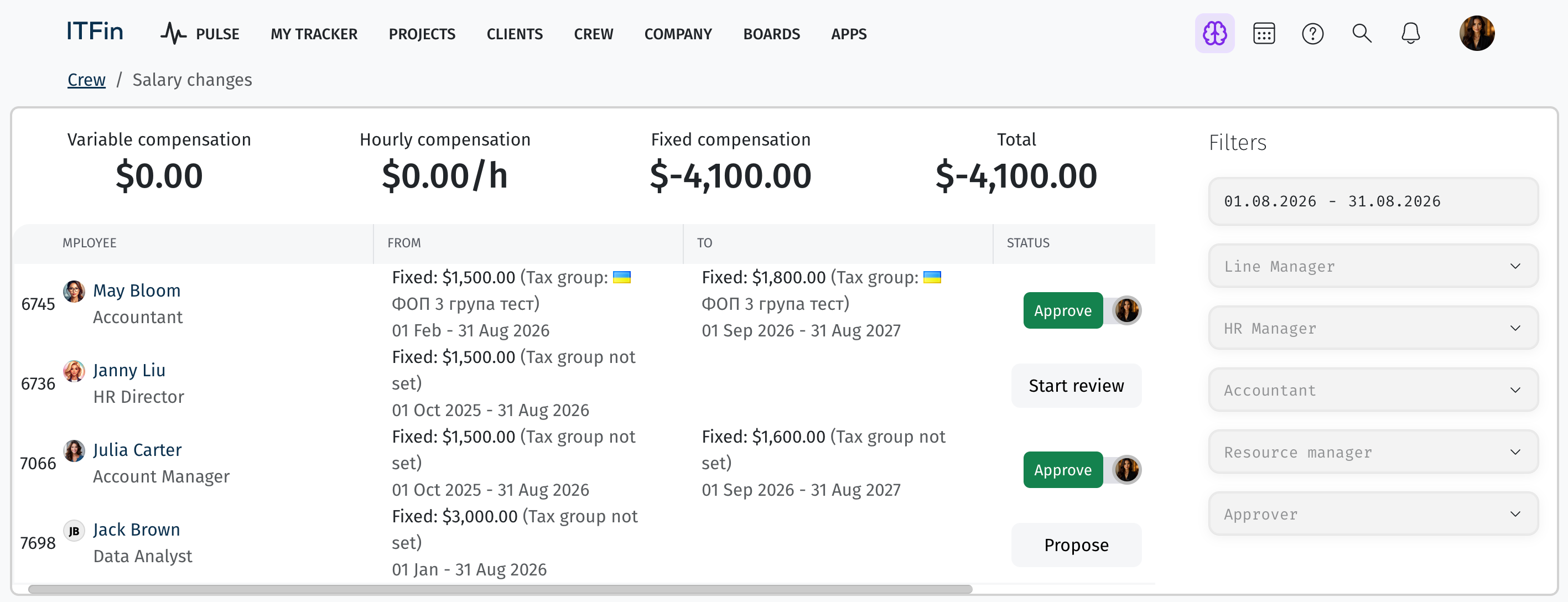
The top of the report shows salary types and the company's total spending on salaries for employees who are currently in the review process for the selected period.
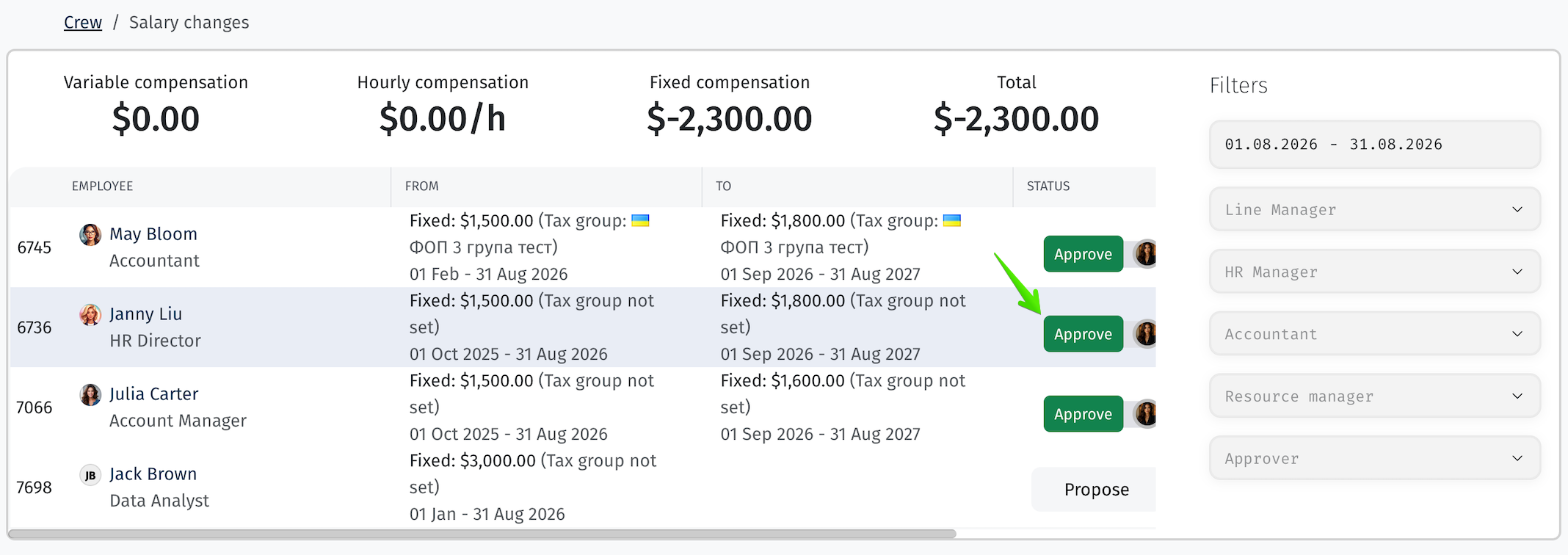
The report also displays the following information:
Access to this report can be granted to the employee's line manager or HR manager, so they can initiate a review of the salary level.
Review Process
Step 1. Start the review
To start the review, click the Start review button.
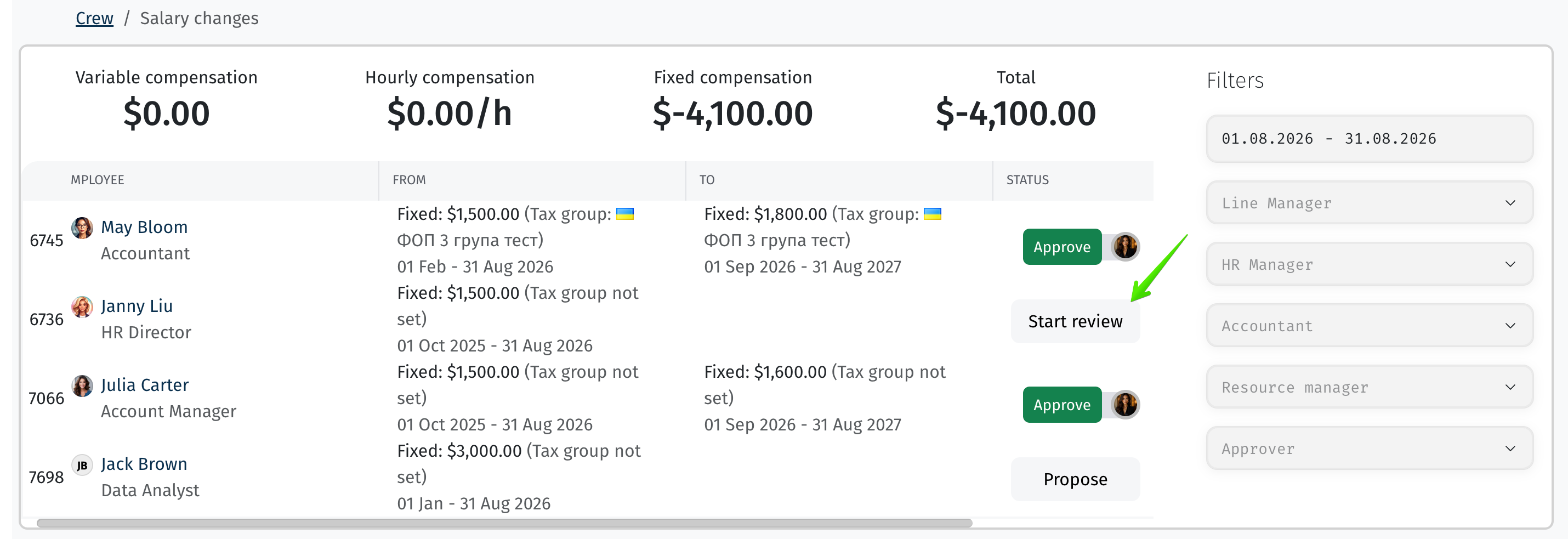
Step 2. Propose a new salary
Fill out the form with the proposal for reviewing and changing the compensation.
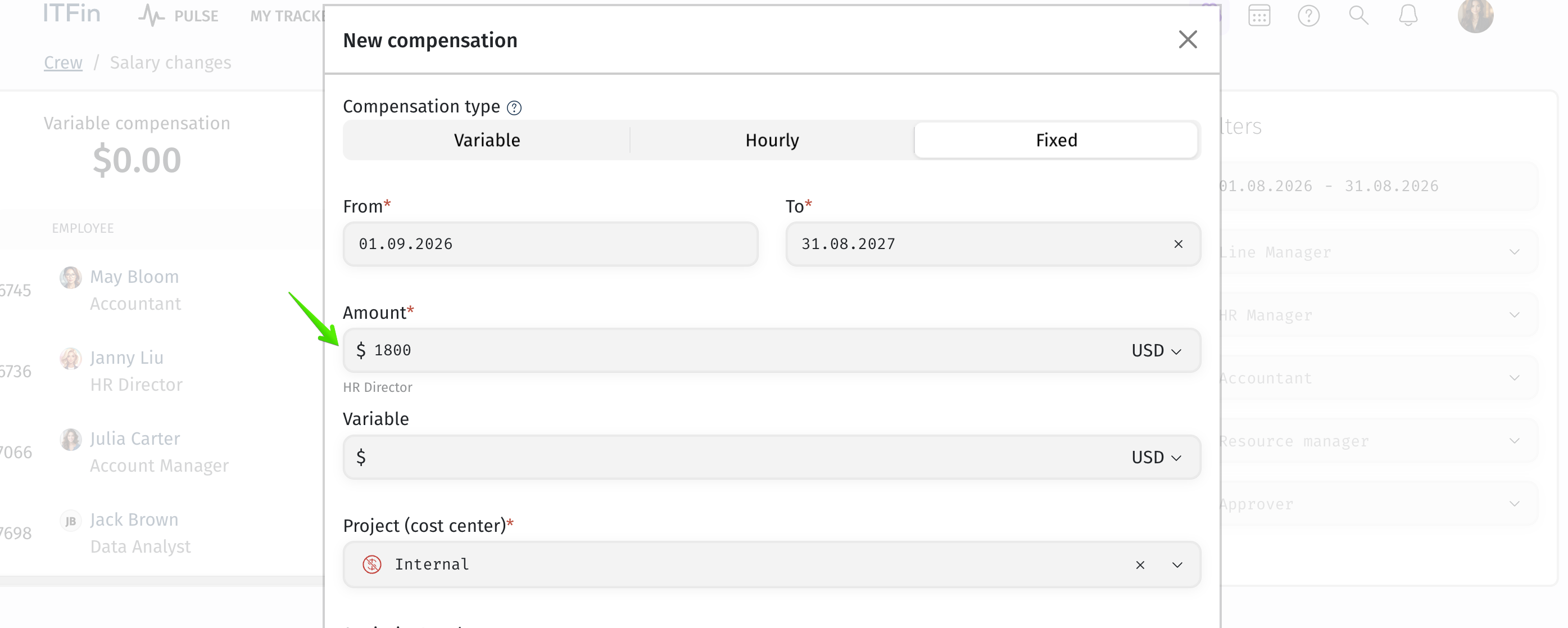
Once the request is created, you can review the new amount that was proposed, as well as who needs to review this request according to the approval settings.
Step 3. Review the request
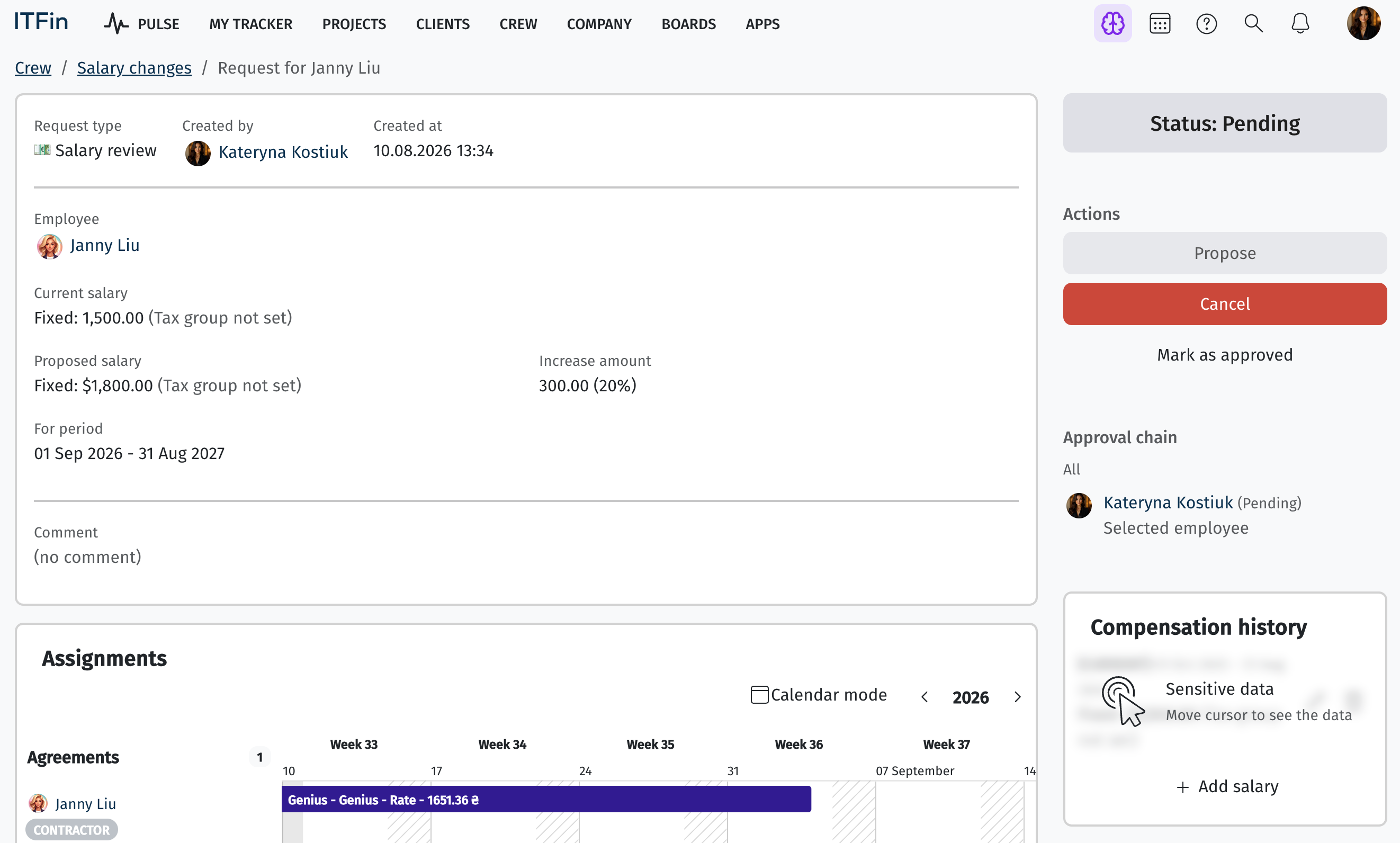
From this same window, you can go directly to the request and view all its details. This is also where the salary range for the employee's position is recorded. The salary range is currently set manually for each position and level. The system also automatically calculates how much the salary is increasing, shows this as a percentage, records the period for which the new amount is proposed, and allows the compensation approval process to be conducted transparently.
Step 4. Approving the request
The request then goes through the approval process: designated users can review it, leave comments, discuss details, and tag colleagues.
Step 5. Final approval
Once the request has been agreed upon by the relevant people, there is an option to finalize the final approval. This can be done either directly on the request page or within the report's functionality itself, where a button is provided for official confirmation.
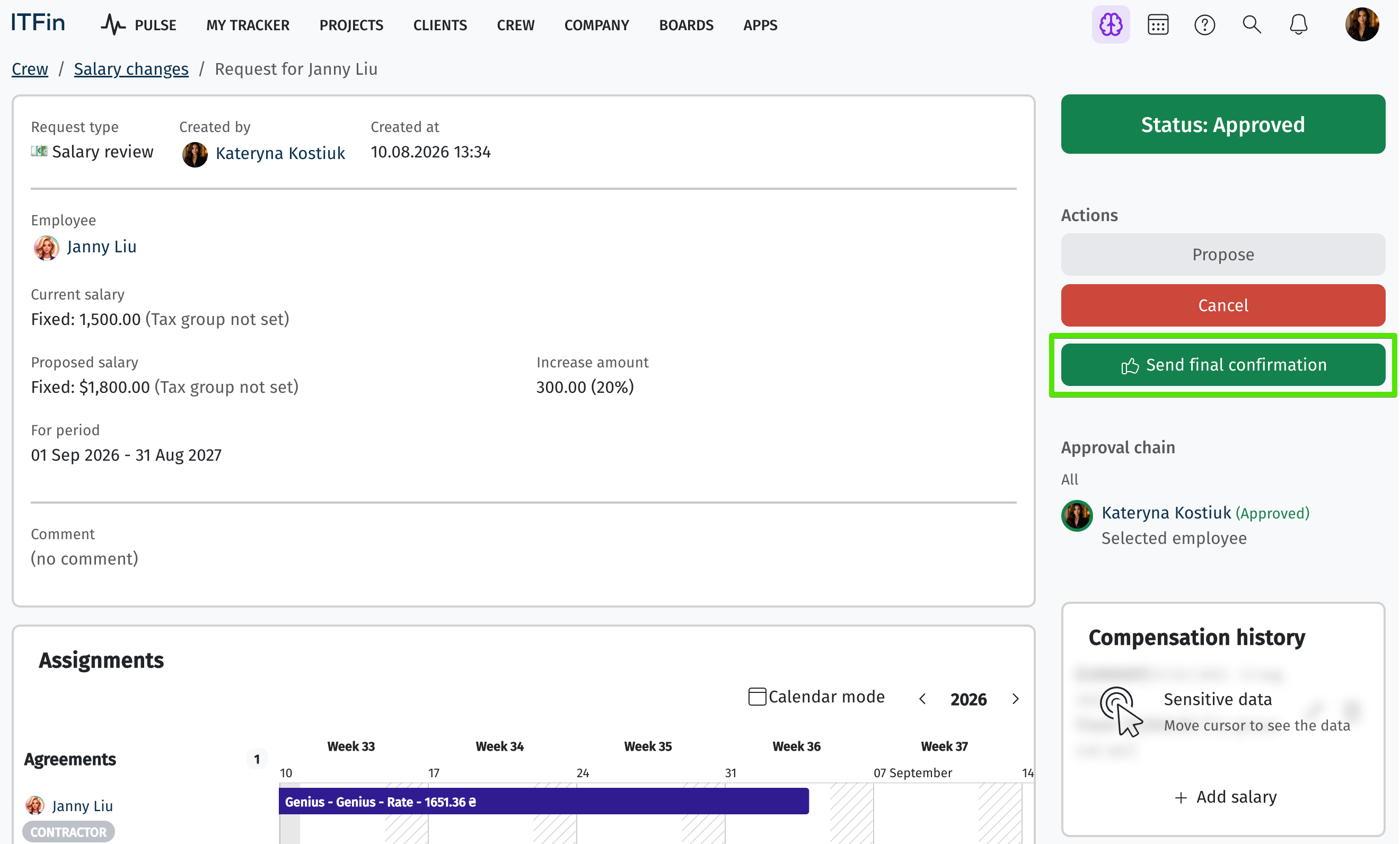
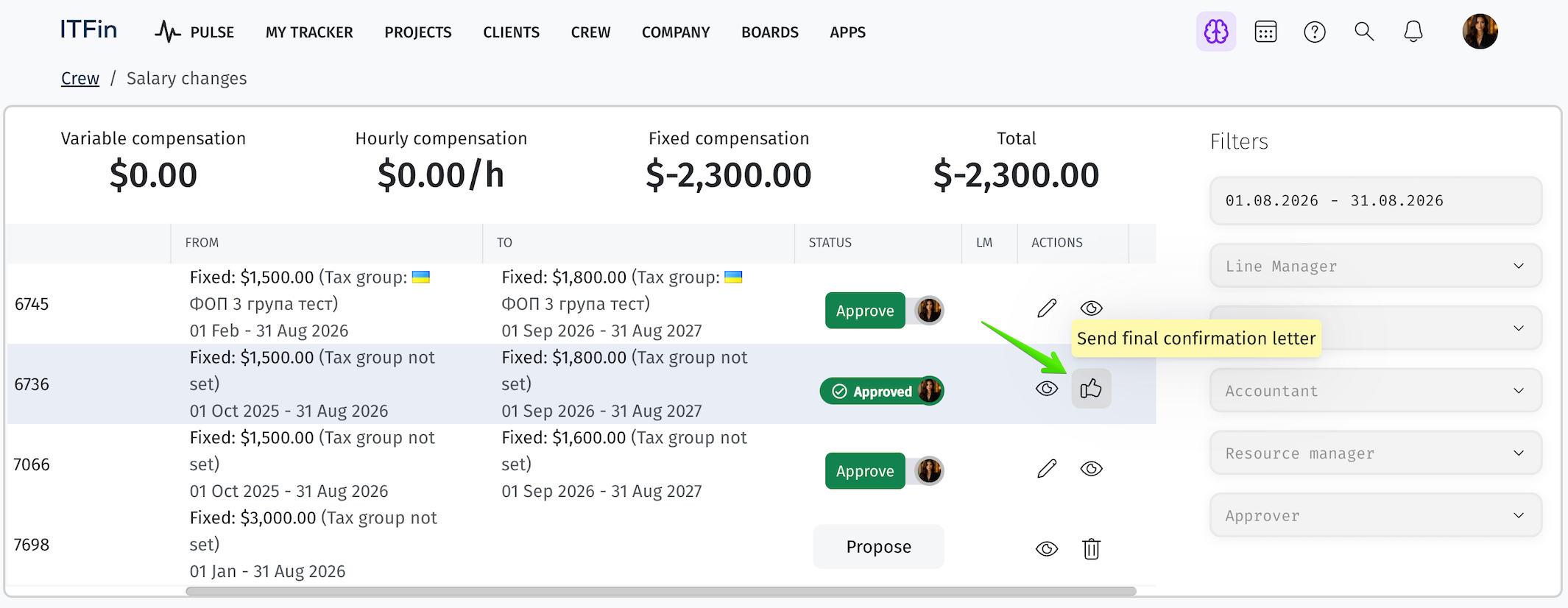
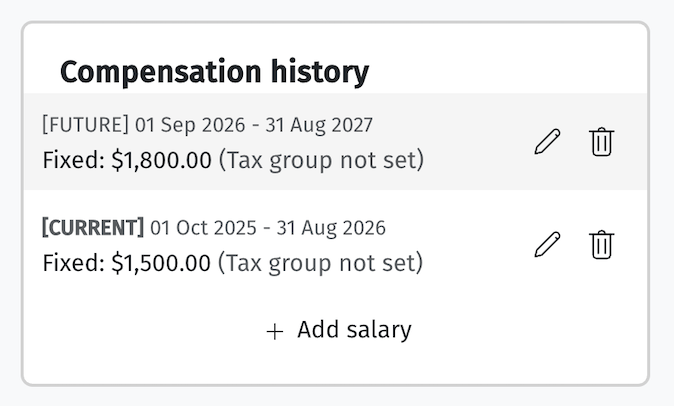
In the typical workflow used by clients, a new salary proposal can be initiated, for example, by the employee's project or line manager, and it is approved by management. There may be a situation where the amount finally approved differs from the one originally proposed. In that case, after the request itself has been approved, it's important to agree on this amount with the employee, and only after the employee confirms the change can the line manager click confirm. The new salary is then automatically added to the employee's profile as a new entry.
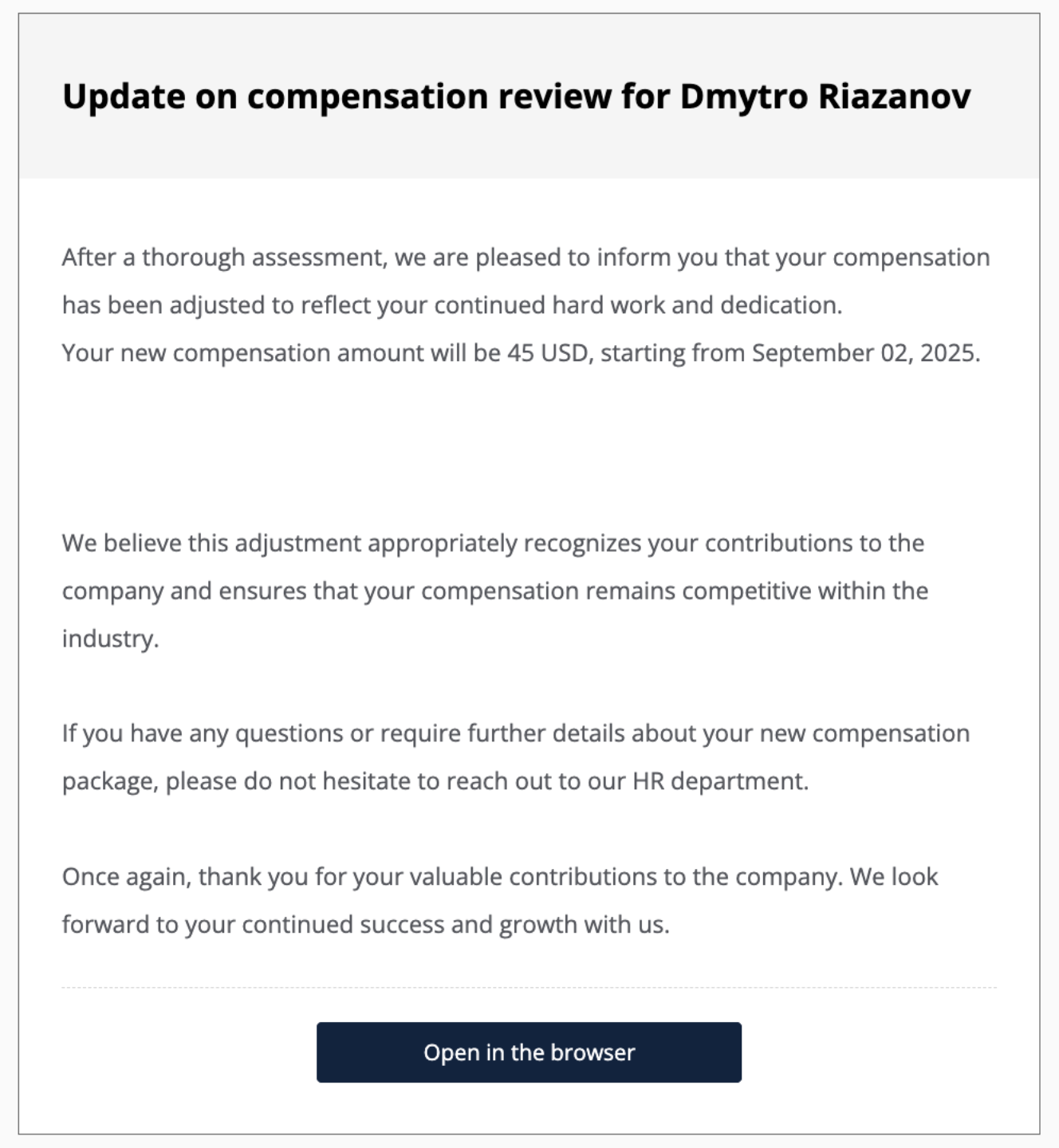
And the employee will receive a confirmation letter with the results of the compensation review.
Extended data on the salary change request page
We've improved the interface of the employee salary change request page so managers have all the information they need to make decisions in one place.
What's new?
Two new information blocks have been added to the right side of the screen on the Crew -> Salary changes -> Request for [Employee name] page:
• Compensation history: You can now see the employee's full history of payment changes directly while reviewing the request. This block is identical to the one shown in the user's profile.
• Performance appraisal: A widget has been added showing the results of recent appraisals, allowing you to quickly compare the salary change request against the employee's achievements.
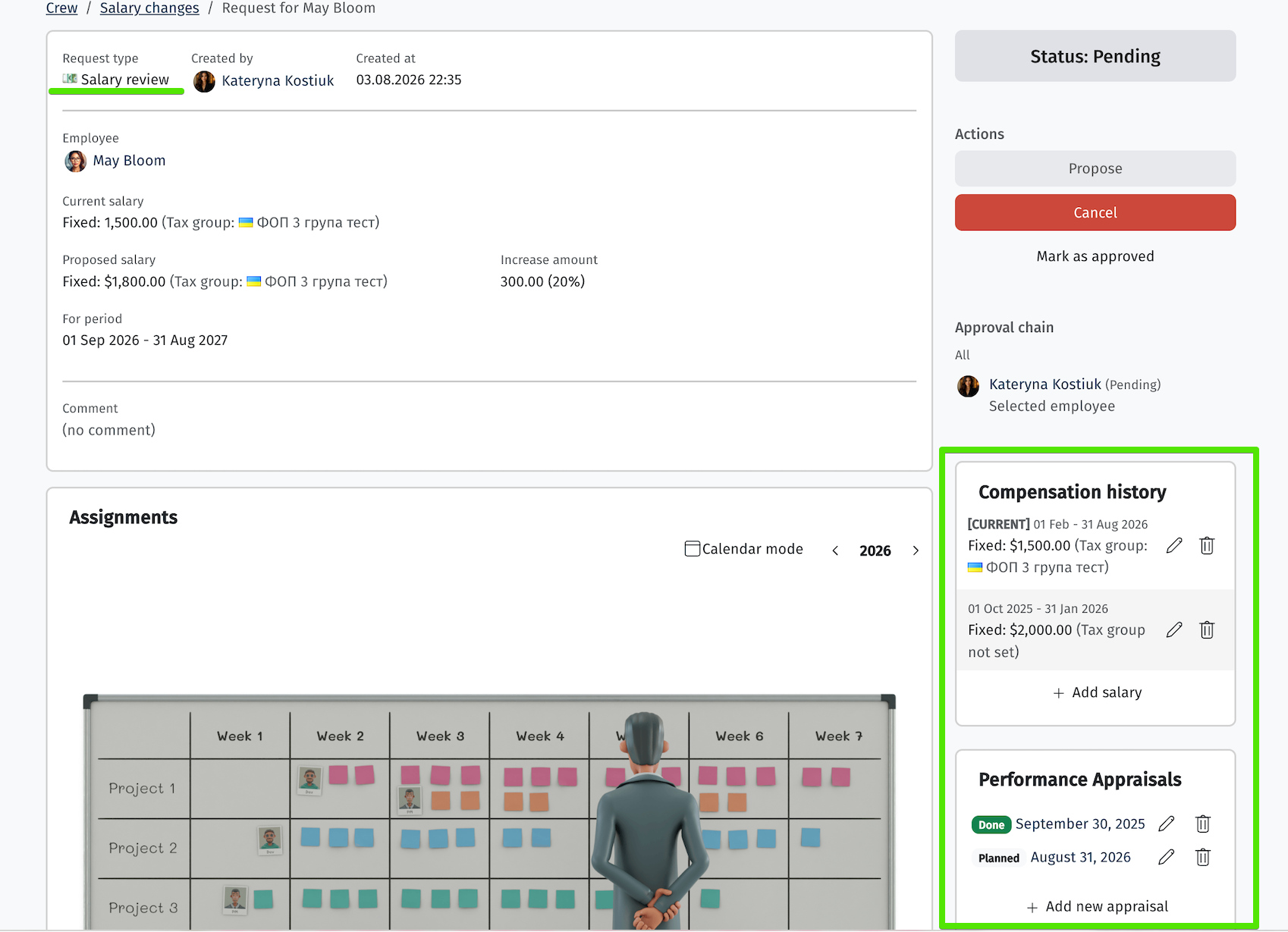
Important details:
• Visibility: Whether these blocks are displayed depends on your access rights (scopes). The compensation block is visible to users with the employees_line_manager_see_salary permission, and the appraisal block with the appraisals_can_see permission.
• Data accuracy: We fixed a bug that could cause performance appraisal data to display incorrectly when quickly switching between requests for different employees. The information is now always accurate for the selected profile.
"Propose" button on the request page
We've added a new feature for easier viewing and updating of compensation. You can now submit salary change proposals directly from a specific request's page, not just from the general table.
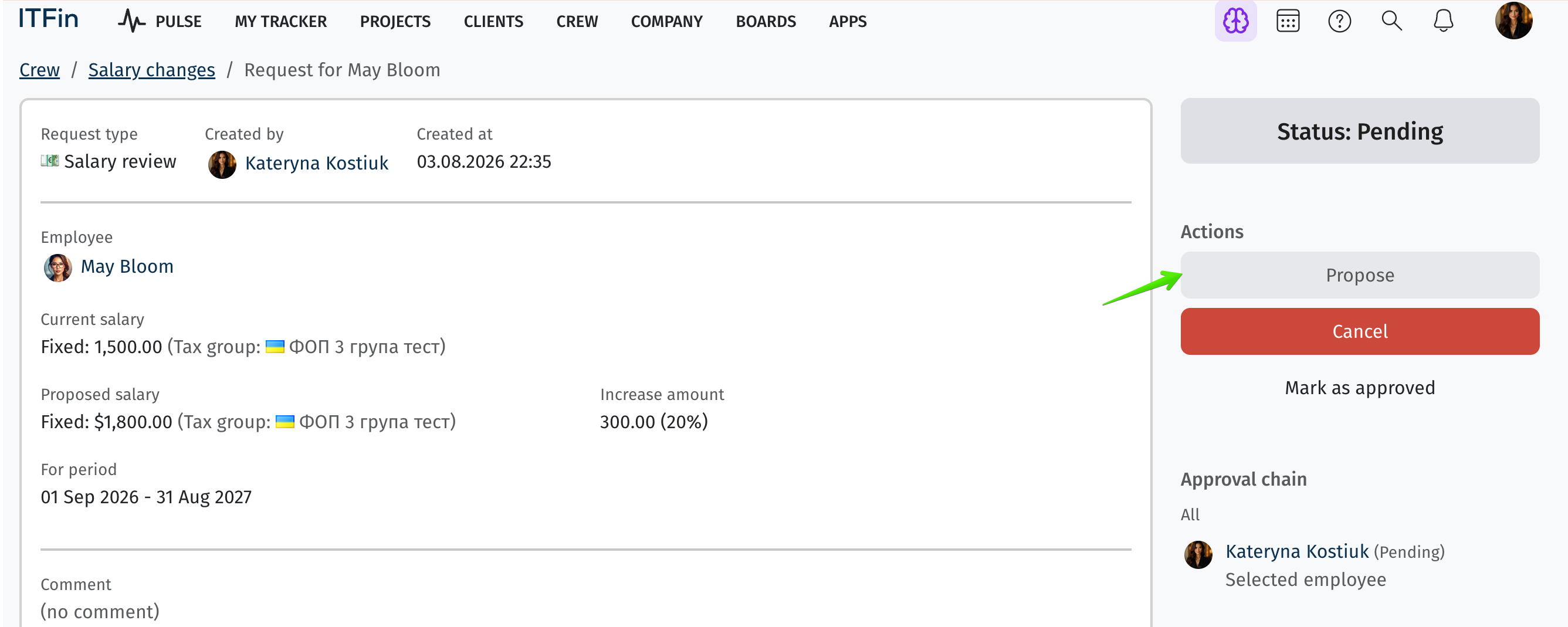
What's changed:
-
New "Propose" button: Added to requests of type Salary review. It opens a modal window for entering the new compensation amount.
-
Availability by status: The button is available for requests in the Draft, Canceled, and Rejected statuses.
-
Access rights: The button is active for users with the appropriate roles (Line Manager, HR Manager, Account Manager, or users with full access to salary review). If you don't have the appropriate rights, the button will be inactive.
-
Automatic status change: After saving the new proposal, the request status automatically changes from Draft to Pending, and the "Propose" button becomes inactive.
-
Managing the request: In Pending status, a Cancel button appears in place of the propose button, allowing you to withdraw the proposal if needed.
How to use it:
-
Go to the list of requests and click the "Eye" icon next to the relevant request.
-
On the request screen, click the "Propose" button.
-
In the modal window, enter the new compensation amount and click "Save".
This update makes the salary review process more transparent and faster, allowing changes to be made directly within the request interface.