🧾 Automatic Reminders for Unpaid Invoices
ITFin now supports automatic email reminders for customers with unpaid invoices.
🔍 Benefits
-
Reduce accounts receivable
-
Automate overdue payment follow-ups
-
Minimize manual communication with customers
⚙️ How It Works
-
Reminders are enabled at the
-
Reminder rules (timing and frequency) are configured
Within a single project, you can create multiple reminder stages, for example:
-
On the invoice
-
15 days after the
-
30 days after the
The system will automatically send reminder emails on behalf of your company if an invoice has one of the following statuses:
-
Sent
-
Late
-
Short debt
-
Long debt
-
Critical debt
🚫 When Reminders Are Not Sent
Invoices with the following statuses are excluded from the reminder system:
-
Draft
-
Ready to send
-
On review
-
Paid
-
Partially paid
-
Canceled
-
Bad debt
🚀 How to Start Using Invoice Reminders
1️⃣ Configure Permissions
To be able to configure reminders within a project, a user must have access to the Settings tab in that project.
🔐 Access to the Settings tab is granted through one of the following scopes:
• projects_edit_own — for the project’s PM and AM
• projects_edit_any — for users with broader permissions
2️⃣ Create a Reminder Template
Go to:
Company → Settings → Templates
Create a new reminder template that will be used for automatic emails about overdue invoices.
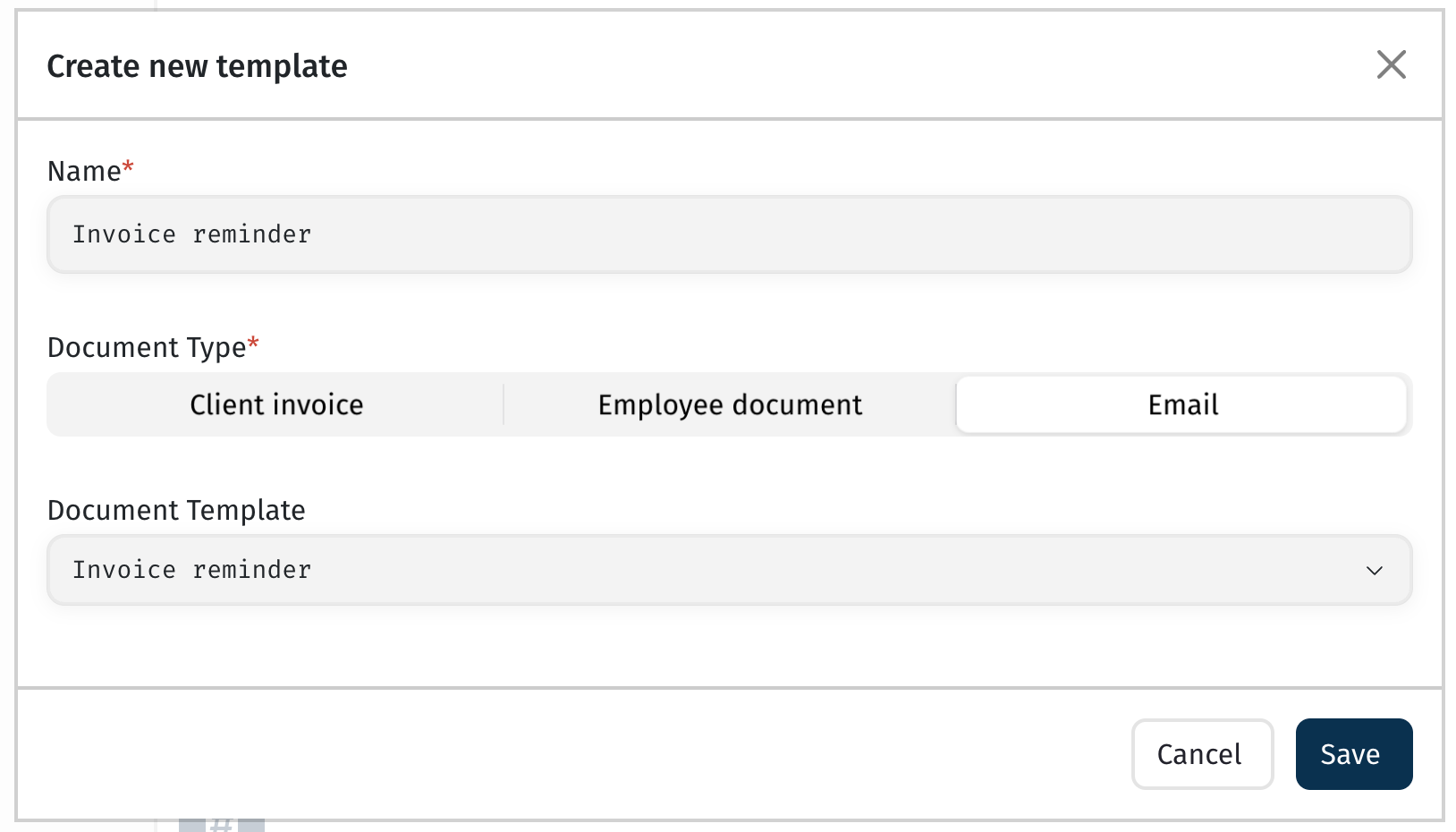
A default template will be created automatically, and you can edit it at any time if needed.
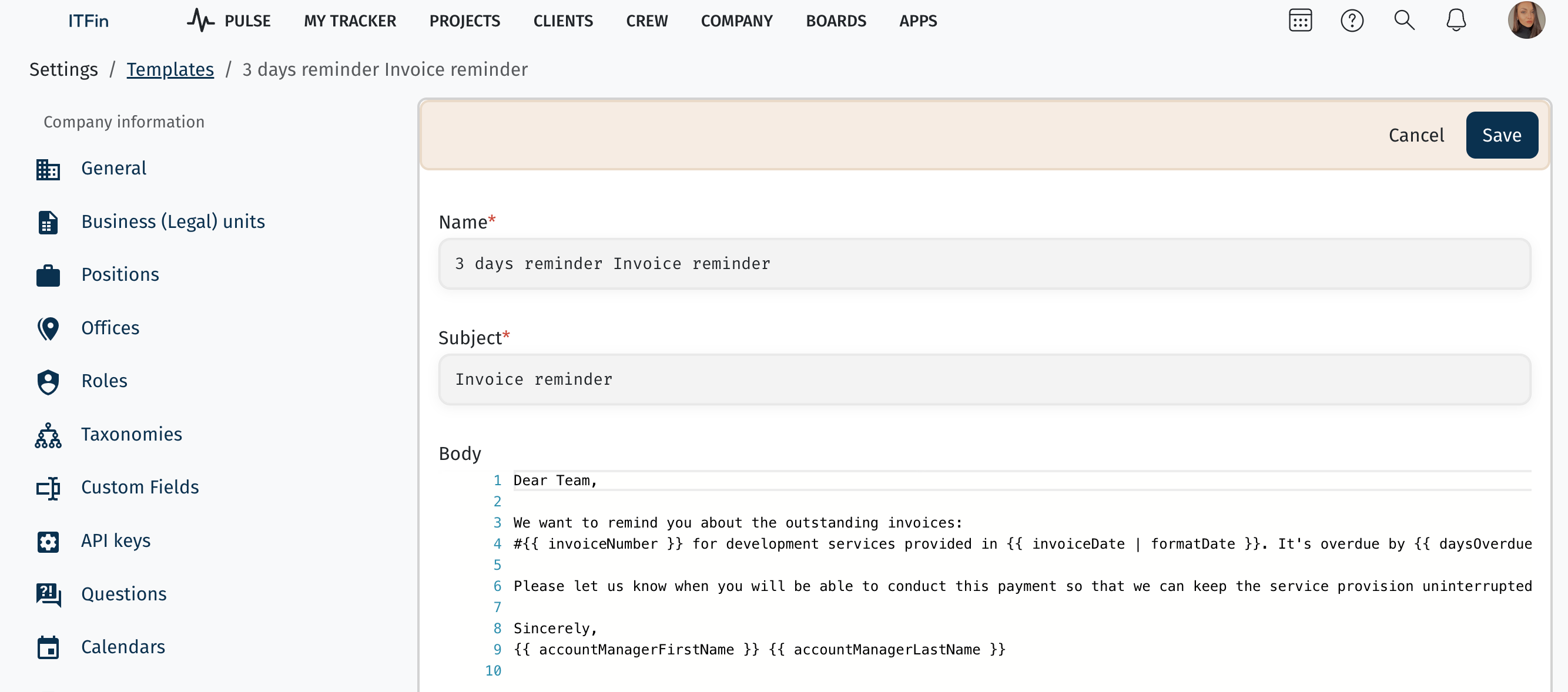
🧩 Additional Tags for Reminder Templates
When configuring an invoice reminder template, you can use variables (tags) that automatically insert the relevant information into the email subject or body.
{{ projectName }}
{{ invoiceNumber }}
{{ invoiceDate | formatDate }}
{{ dueDate | formatDate }}
{{ invoiceAmount | formatMoney(invoiceCurrency) }}
{{ daysOverdue }}
{{ whenOverdue }}
{{ accountManagerFirstName }}
{{ accountManagerLastName }}
{{ agreementNumber }}
{{ dateOfSigningAgreement | formatDate }}
3️⃣ Enable Invoice Reminders and Configure Sending Rules
Go to the Settings tab in the relevant project and enable the Overdue Invoices option.
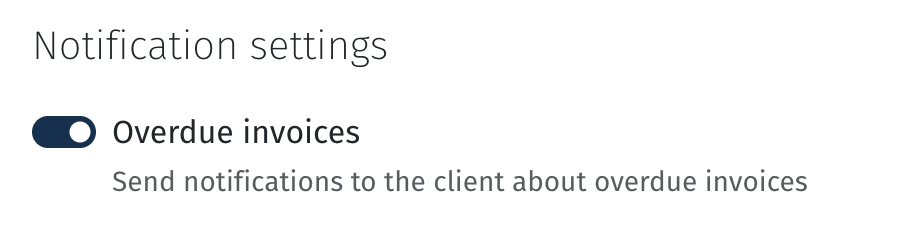
After enabling it, the + Add Reminder button will become available.
Configure the reminder rule using the following fields:
• Template* — select the reminder template you created.
• When* — specify when the reminder should be sent.
• Reminder days* — specify the number of days before or after the Due date when the reminder should be sent.
• Recipients — email addresses that will receive the reminder. These are populated automatically from the project.
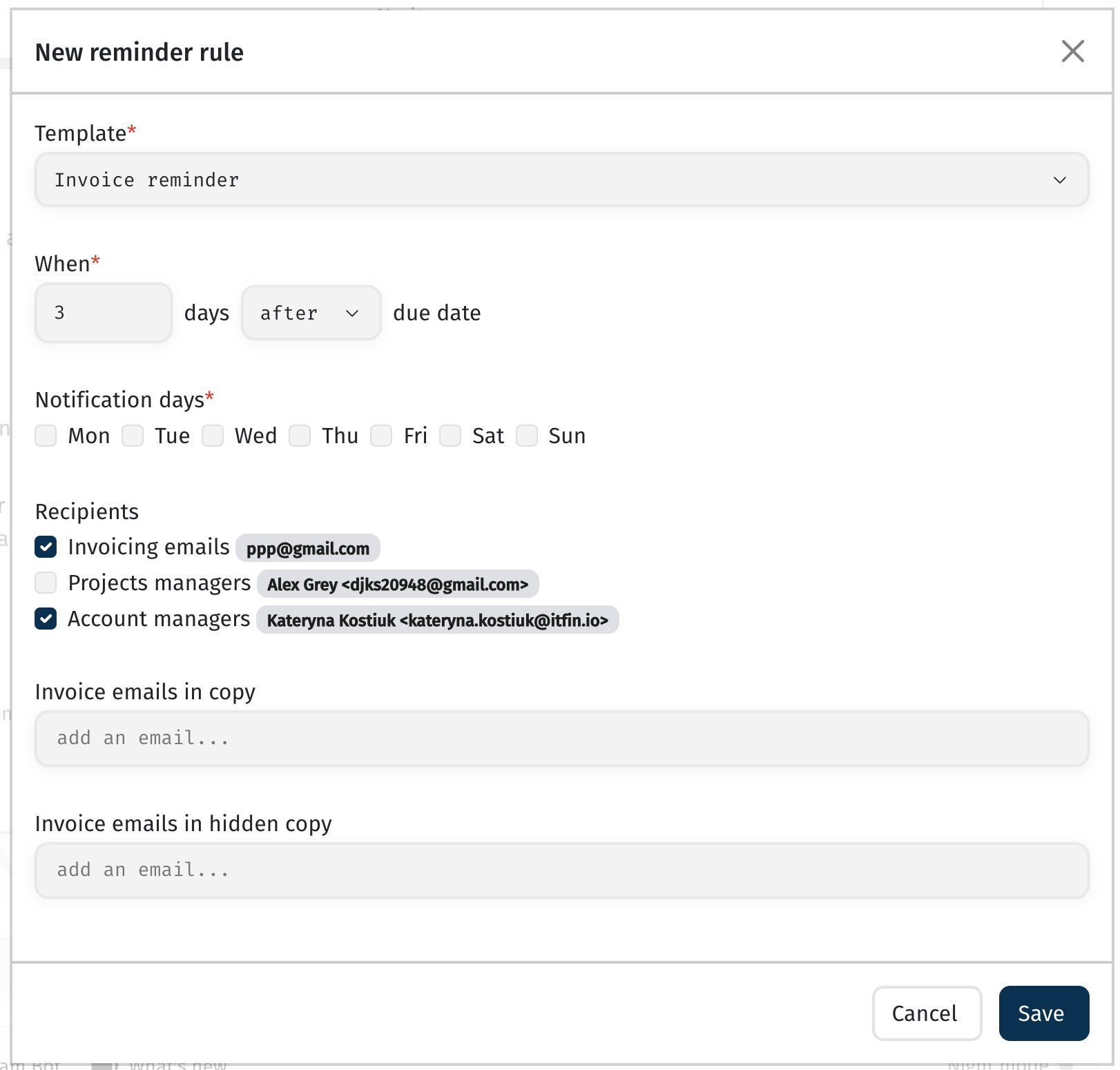
At the initial setup stage, you can temporarily remove the customer’s email address from the project settings and test the reminder functionality by sending the email to your own address.
Please note that each reminder for a specific invoice is sent only once. If the first reminder was sent only to you for testing purposes, it will not be sent again to the customer. The customer will receive only the next scheduled reminder (according to the next reminder rule or for another invoice).
To send the same reminder to the customer again, delete the existing reminder rule and create a new one with the same settings.
4️⃣ Enable Invoice Reminders at the Company Level
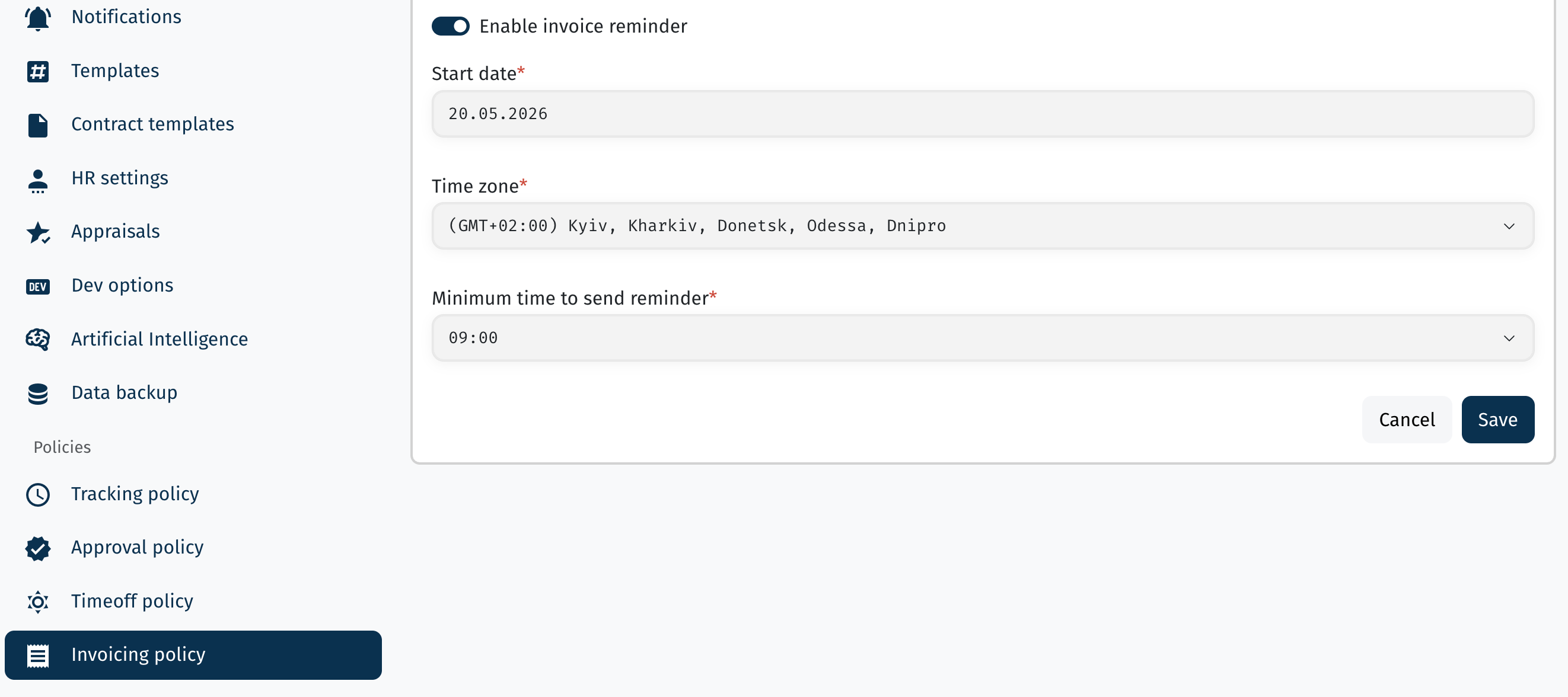
To activate automatic invoice reminders for the entire company, go to Invoicing Policy and enable the Enable Invoice Reminders option.
Once enabled, the system will start sending reminders for invoices whose Due date is on or after the date specified in the Start date field.
• Time zone — the time zone used by the system to determine when invoice reminders should be sent.
• Minimum reminder send time — the earliest time of day (based on the selected time zone) when reminder emails may begin to be sent.
💡 Important
Automatic invoice reminders will only become active after all three required fields are configured:
• Start date
• Time zone
• Minimum reminder send time
Once configured, the system checks for eligible reminders every hour at hh:10 (but not earlier than the time specified in the Minimum reminder send time field). If any reminders match the configured rules, the system creates an email task for the mail server to send.
You can verify that reminders were sent by checking the Sent folder of the financial mailbox configured for sending invoice reminders.
Limitation: No End Date for “X Days After Due Date” Rules
Currently, invoice reminders do not support an end date limitation for rules configured as X days after the Due date.
This means that if you create a rule such as X days after the Due date, the system will send reminders for all invoices that meet the rule and have not yet received that specific reminder, provided that the invoice Due date is on or after the reminder feature Start date.
Example
• An invoice from 2023 has the status Critical debt and a Due date of October 15, 2023.
• The Start date for invoice reminders is set to October 1, 2023.
• The reminder rule is configured to send a reminder 10 days after the Due date.
In this case, the system calculates the expected reminder date as October 25, 2023, detects that this reminder has never been sent, and sends it immediately after the rule is activated, taking the configured time zone into account.
How to Avoid Unexpected Reminders
• Make sure invoices that should no longer receive reminders have the Bad debt status.
• Set the Start date to the current date or choose a convenient future reference point, such as the beginning of the current or next month.
“Before X Days” Rules Are Limited by the Due Date
If you configure a reminder rule to send X days before the Due date, reminders will only be sent before the invoice Due date.
For example:
• If the invoice Due date is today and the reminder rule is configured for 0 days before the Due date, the reminder will be sent today.
• If the invoice Due date has already passed (yesterday or earlier), no reminder will be sent, even if the reminder should have been triggered previously but was never delivered.
Reminders Are Sent Only on the Selected Notification Days
If specific Notification days are configured, the system will send reminder emails only on those days, regardless of the configured Before/After X days rule.
What This Means
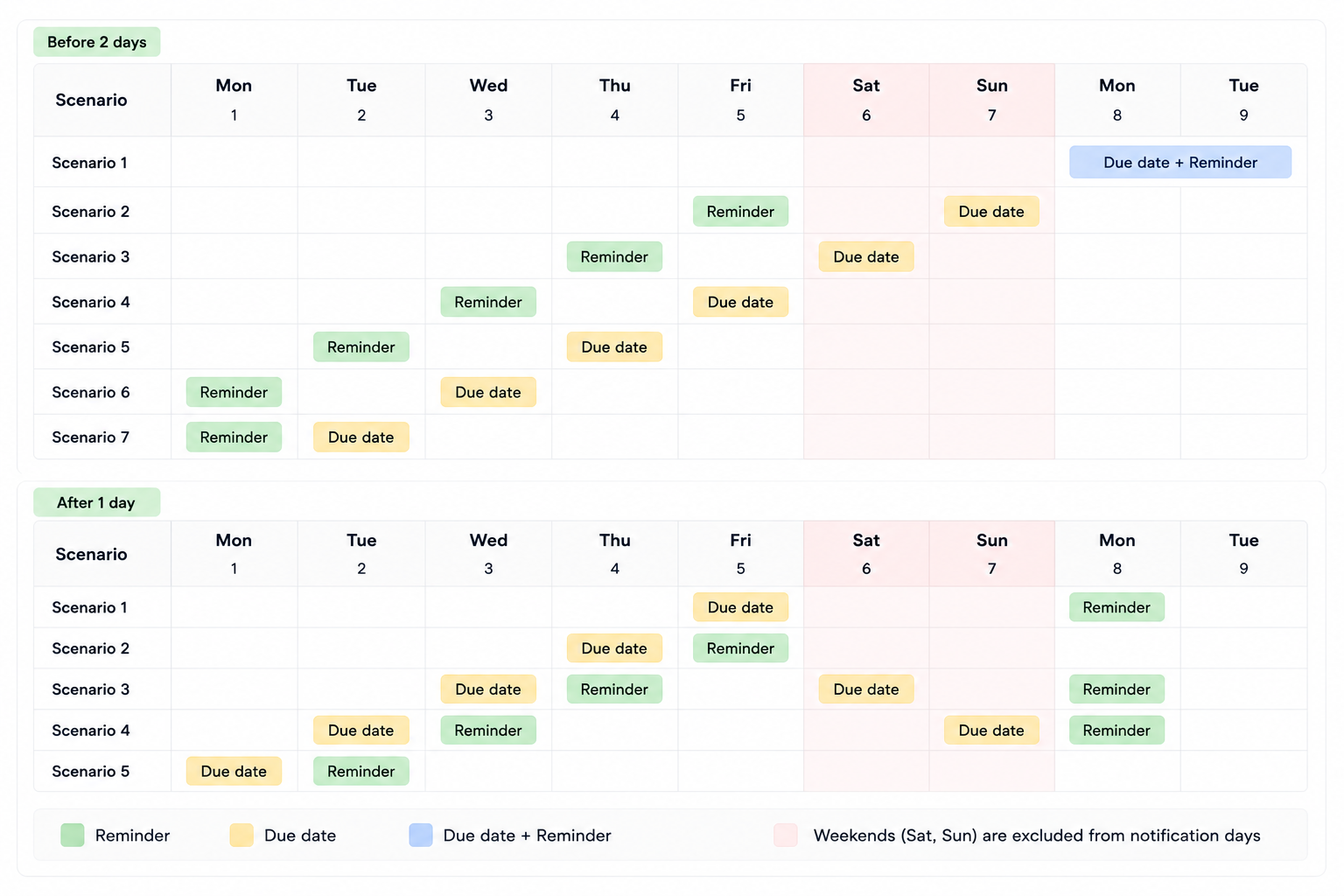
If the calculated reminder date falls on a day that is not included in the selected Notification days (for example, Saturday or Sunday), the system will automatically postpone the reminder to the next available notification day based on your configuration.
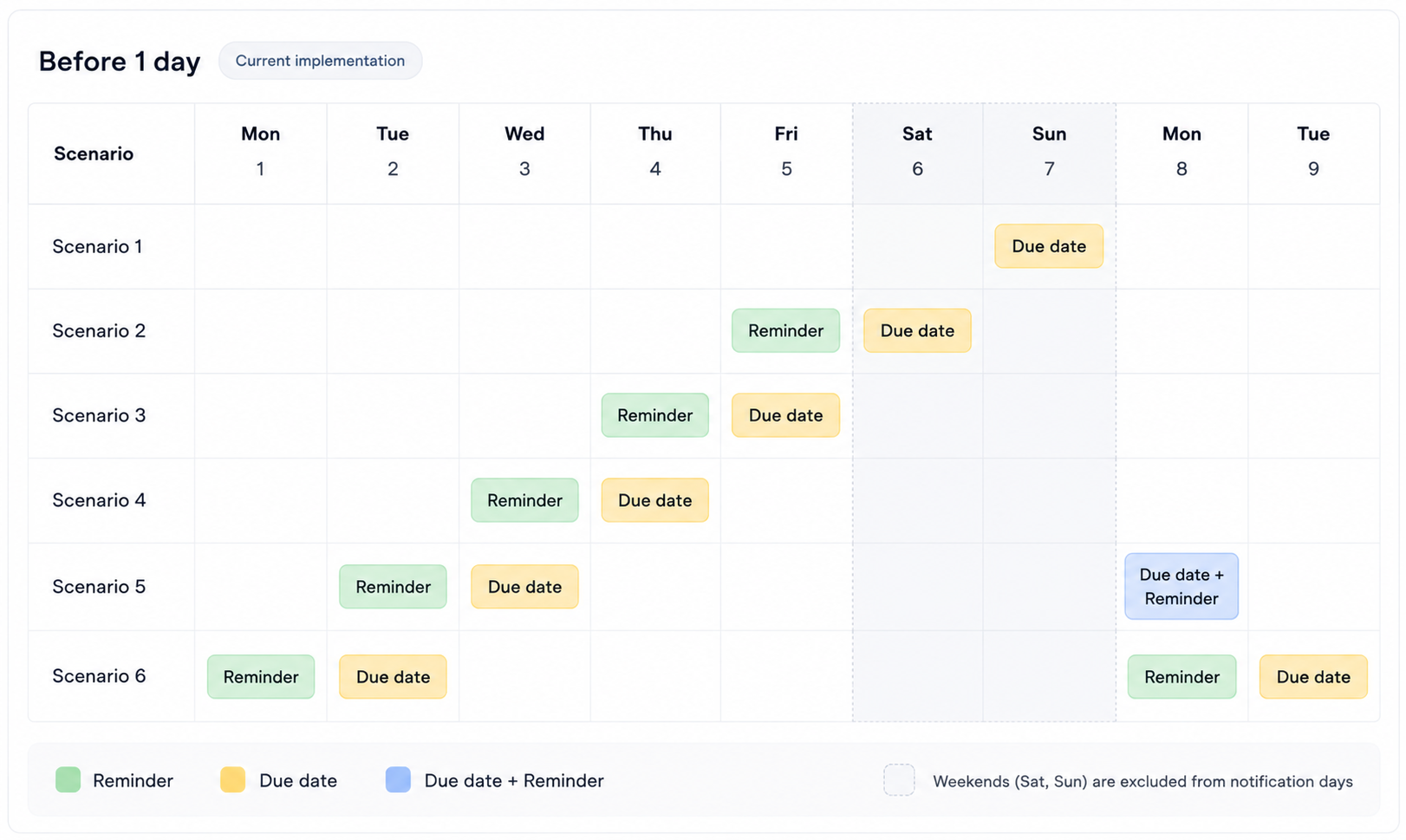
In the example above, the reminder is configured to be sent 1 day before the Due date. However, since Saturday and Sunday are excluded from the selected Notification days, no reminder will be sent for an invoice with a Due date on Sunday.
For an invoice with a Due date on Monday, the reminder will instead be sent on Monday, as this is the next available Notification day.
Q&A
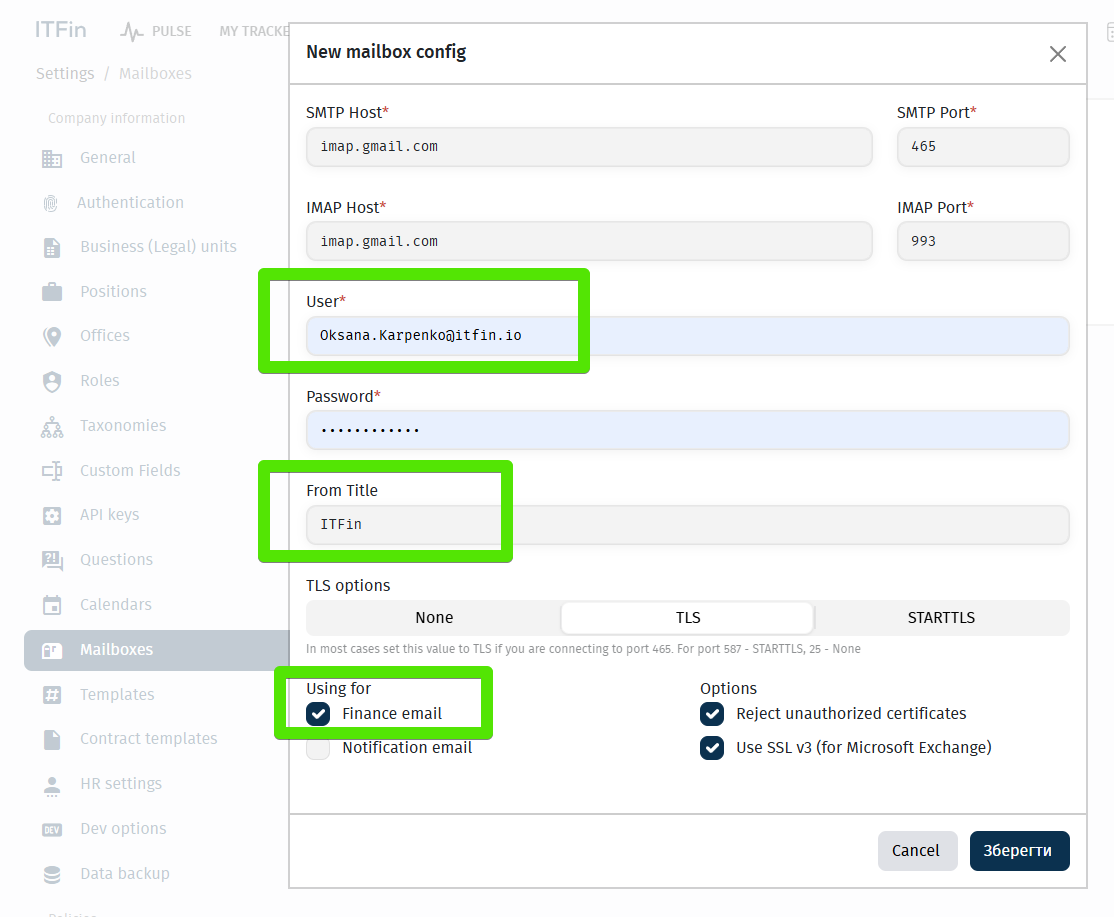
Which email address are invoice reminders sent from?
Invoice reminders are sent from your financial mailbox configured in the system.
In the example below, the email is sent from ITFin using oksana.karpenko@itfin.io.
What happens if the reminder date falls on a day that is not included in the Notification days?
In this case, the reminder is postponed to the next available Notification day configured in your settings.
However, if you are using a Before X days rule, there are situations where the reminder will not be sent at all (see the example above).
How can I send a reminder on the invoice Due date?
Configure the reminder rule as:
When → 0 days after Due date
Does the system use calendar days or business days?
The system uses calendar days, calculated relative to the invoice Due date.
How is the Due date determined?
The Due date is set when the invoice is created.
By default, the system calculates it as:
Issue date + 15 days
You can change this value manually when creating the invoice or configure custom rules at the project or customer level to define how many days after the Issue date the Due date should occur.
What time are invoice reminders sent?
The system automatically checks and sends reminders every hour at 10 minutes past the hour (hh:10).
Before sending, it verifies that all reminder conditions are met.
Reminders are not sent before the Minimum reminder send time configured in your settings. The configured Time zone is also taken into account.
If you have any additional questions, feel free to contact the ITFin Support Team. 🚀