How can I configure public holidays based on an employee’s country?
Calendars are configured in the Settings section, where you define the public holidays yourself.
If you use different calendars for different countries, make sure that the Country specified in the employee’s profile matches the country of the calendar you want to apply to that employee.
If there is no calendar configured for the country selected in the employee’s profile, the default calendar will be used.
How can I change an employee from full-time to freelance?
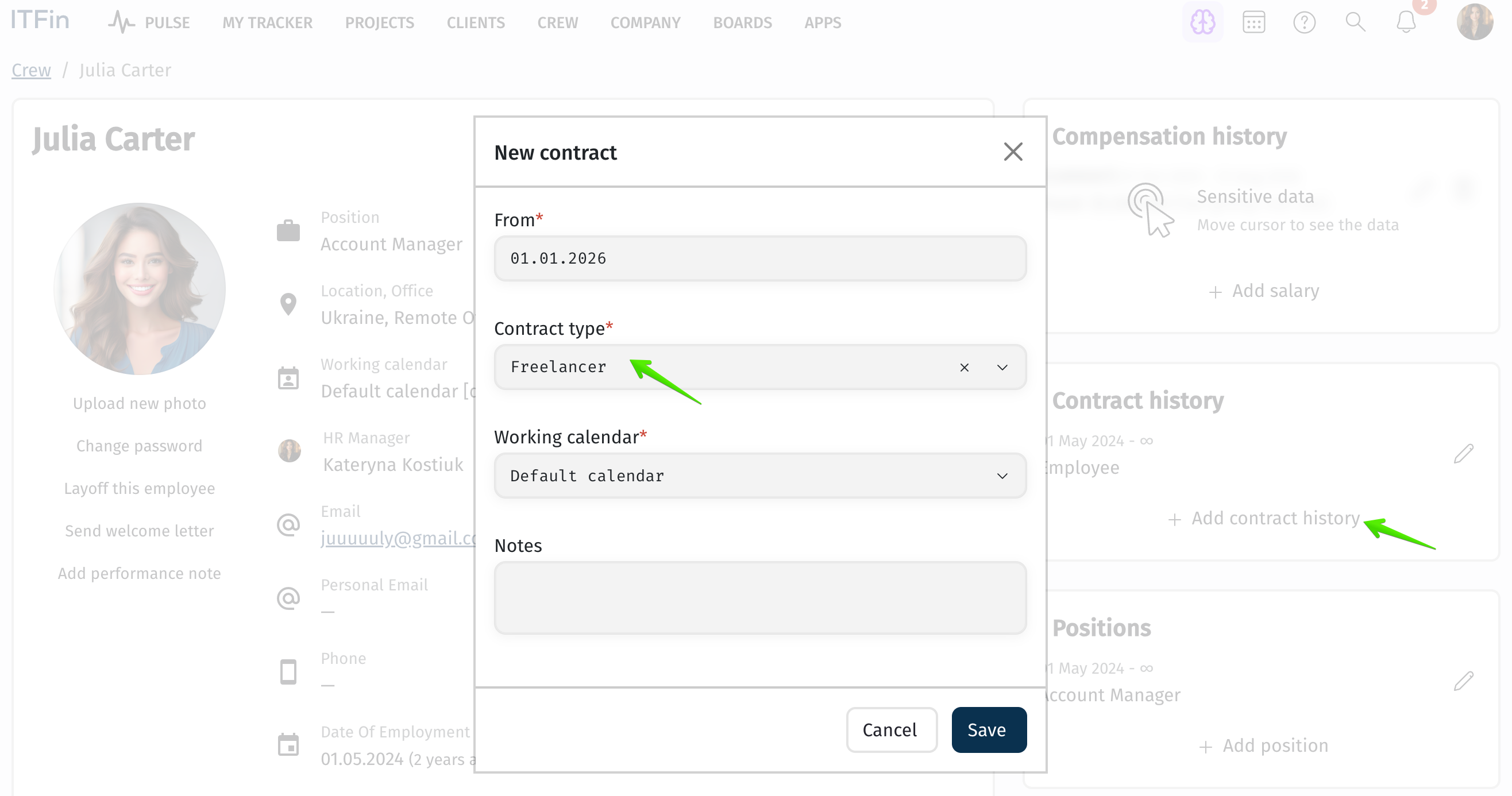
When changing the contract type, do not edit the existing record. Instead, add a new record with the effective start date of the new contract type. This preserves the complete history of all contract types assigned to the employee.
For example, if an employee was Full-time until May 31, the existing record should end on May 31. Then create a new Contract Type record starting June 1 and select Freelancer as the new contract type.
This approach ensures that the employee’s contract history remains accurate and complete.
Does the Part-time option affect salary calculation?
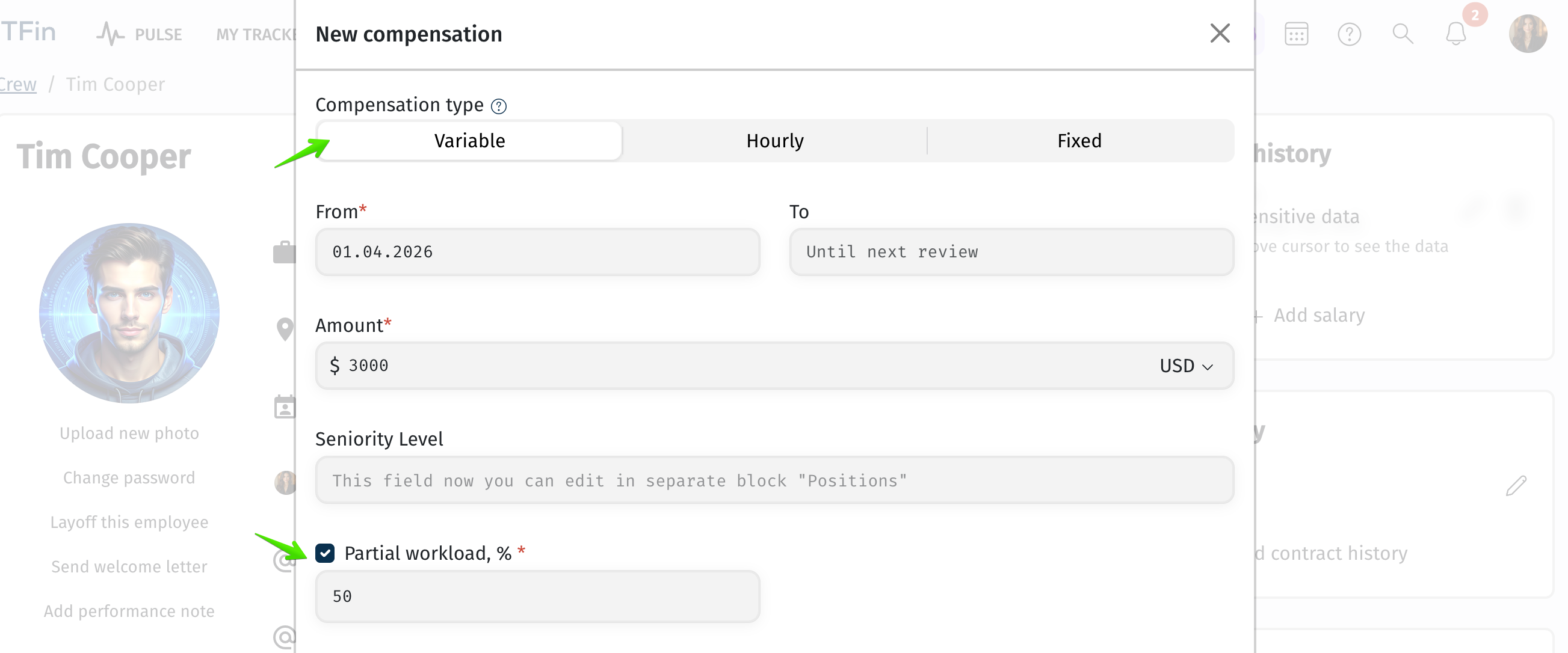
No. The Part-time option is only an informational marker indicating that the employee does not work full-time. It does not affect salary calculation.
For example, if an employee works at 50% capacity, the compensation amount should already reflect the actual amount to be paid for that workload.
The only exception is when the employee has a Variable salary compensation type and the Pay untracked hours option is enabled. In this case, the employee will be paid only for the proportion of untracked hours corresponding to their workload based on the monthly calendar hours.
How can I generate and download an invoice for an employee?
To generate and download employee invoices, several settings must be configured.
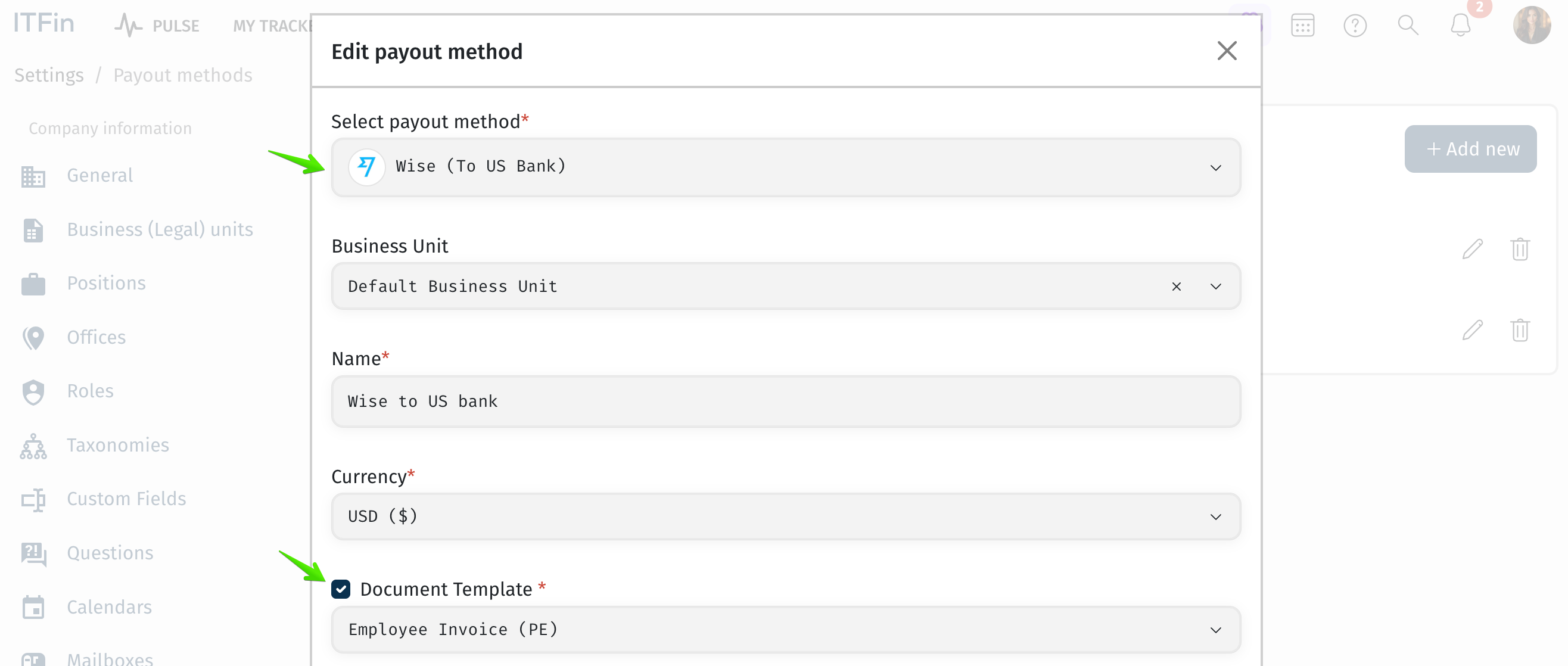
Each employee has a Payment Method assigned for compensation payments. To enable invoice generation, go to:
Company → Settings → Payment Methods
and enable the option to add a document template.
ITFin provides a default invoice template out of the box, which you can customize to meet your company’s requirements if needed.
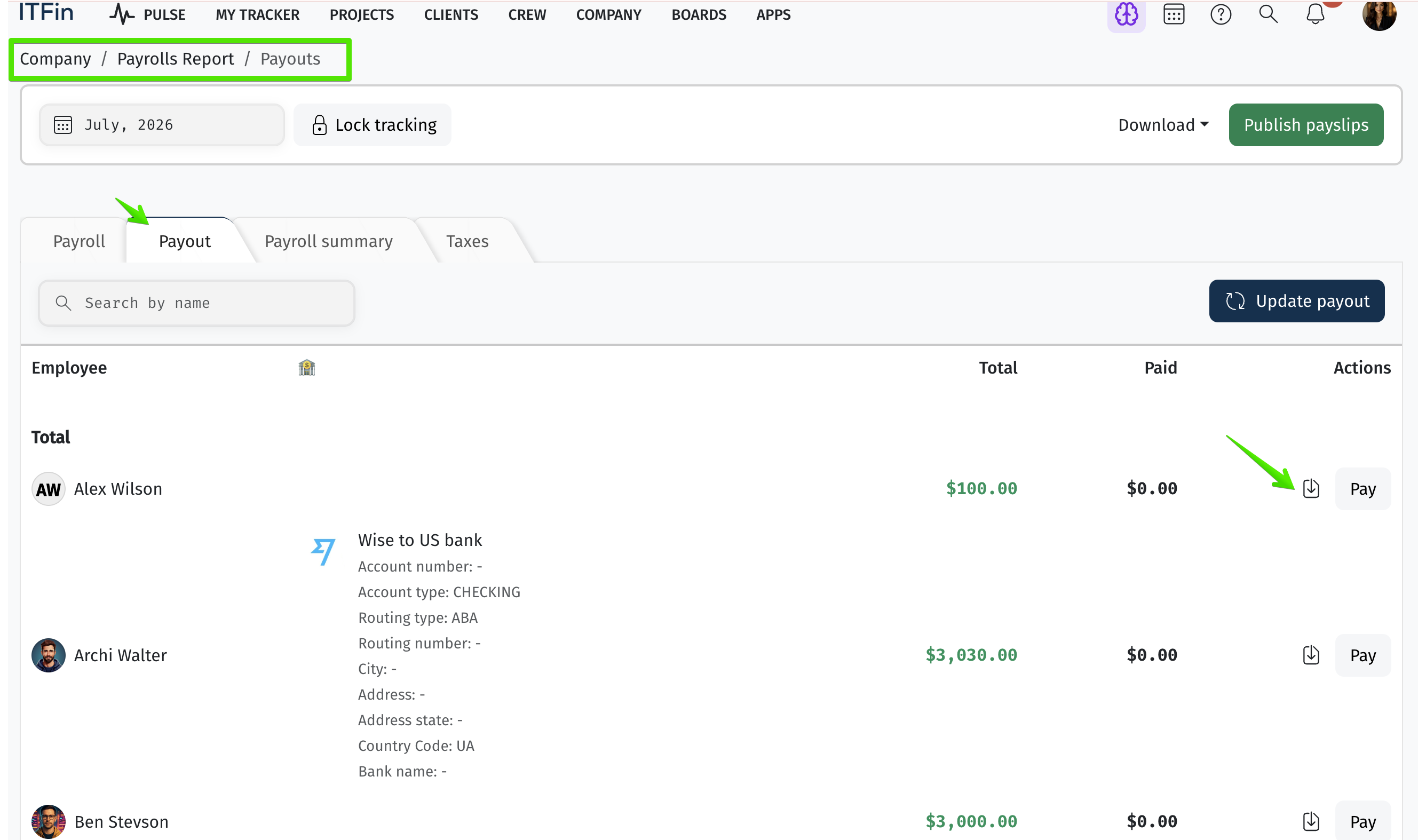
After completing these settings, a Download Invoice button will appear next to each employee’s name on the Payout tab of the Payroll Statement.
Employees can also download their invoices from their profile by navigating to My Compensation.
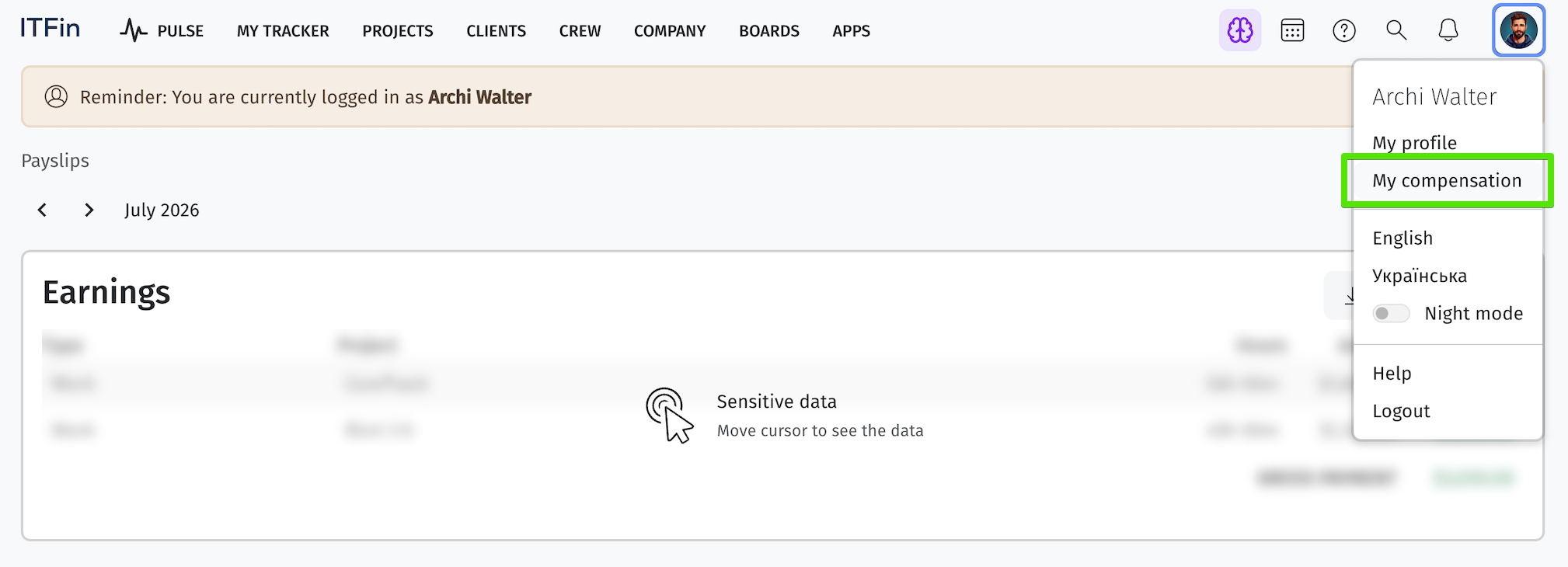
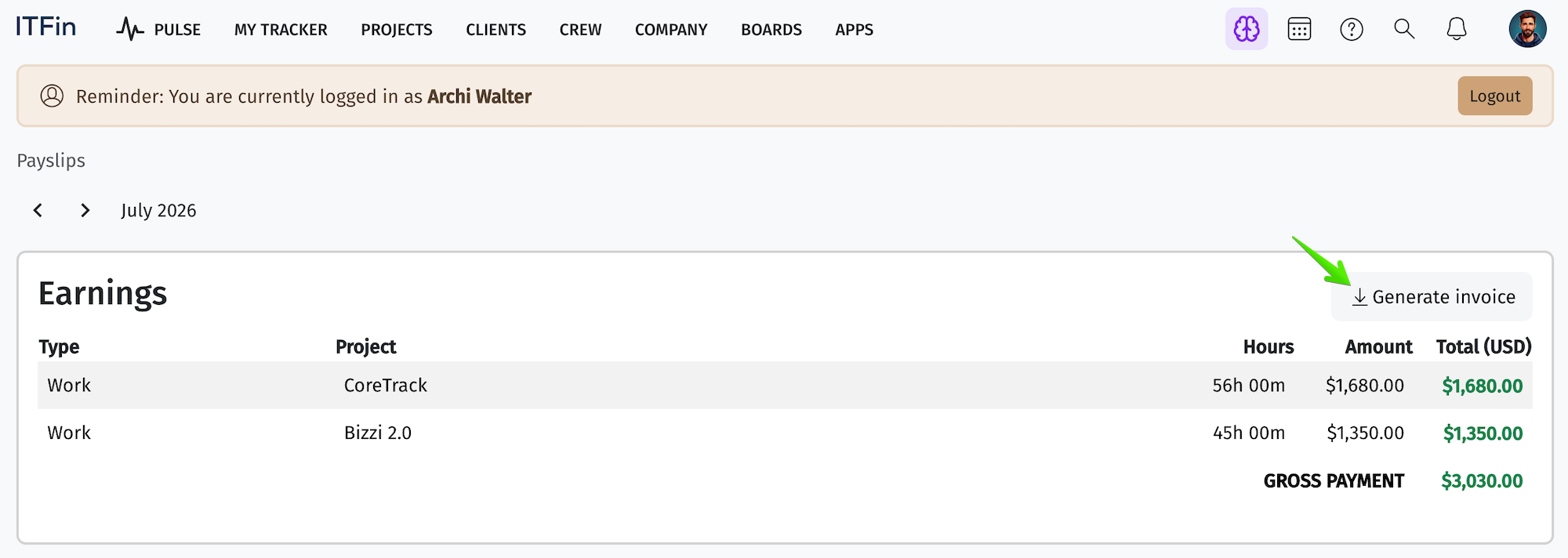
A window displaying the employee’s salary payments will open, where you can select the desired payroll period and view the payment details.
The Download Invoice button will also be available in this window.
If the employee has multiple payment methods configured, a separate Download Invoice button will be displayed for each payment method.
How can I add or deduct vacation days in the Vacation Calculator?
Let’s look at the following scenarios.
▶️ Scenario 1: Add 5 vacation days to an employee’s existing balance
It is recommended to adjust the balance after a closed payroll period, since the current month is still in progress, and any value entered in the calculator is saved as the month-end balance.
Follow these steps:
Go to the Time-off Calculator and review the employee’s vacation balance at the end of the required month.
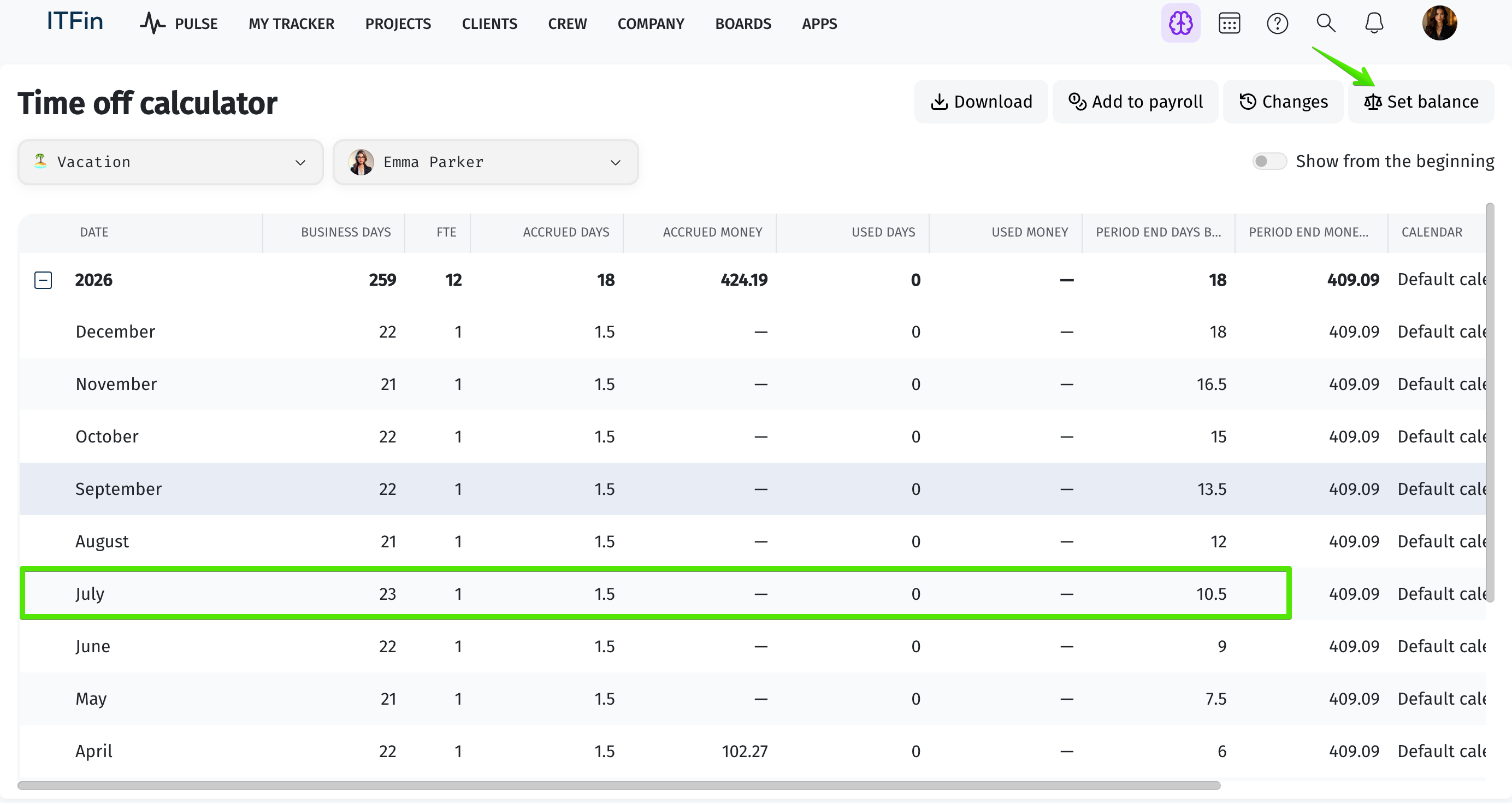
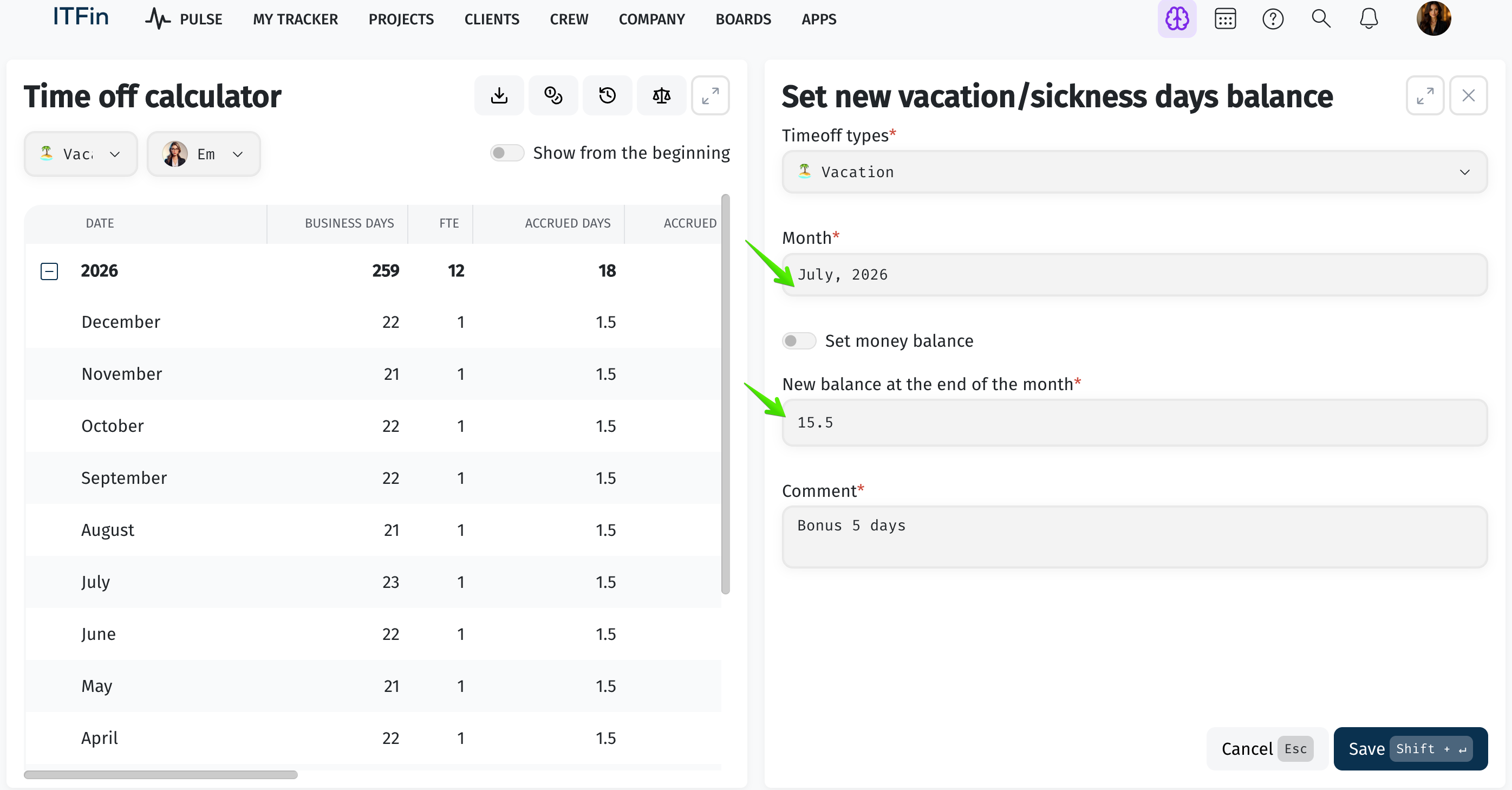
As shown below, the employee’s balance at the end of July was 10.50 days. At this point, click Set Balance and increase the balance by 5 days. This ensures that the vacation accrual for the current month remains unchanged.
Select July and, in the New balance at the end of the selected month field, enter the total balance:
10.50 + 5 = 15.50 days
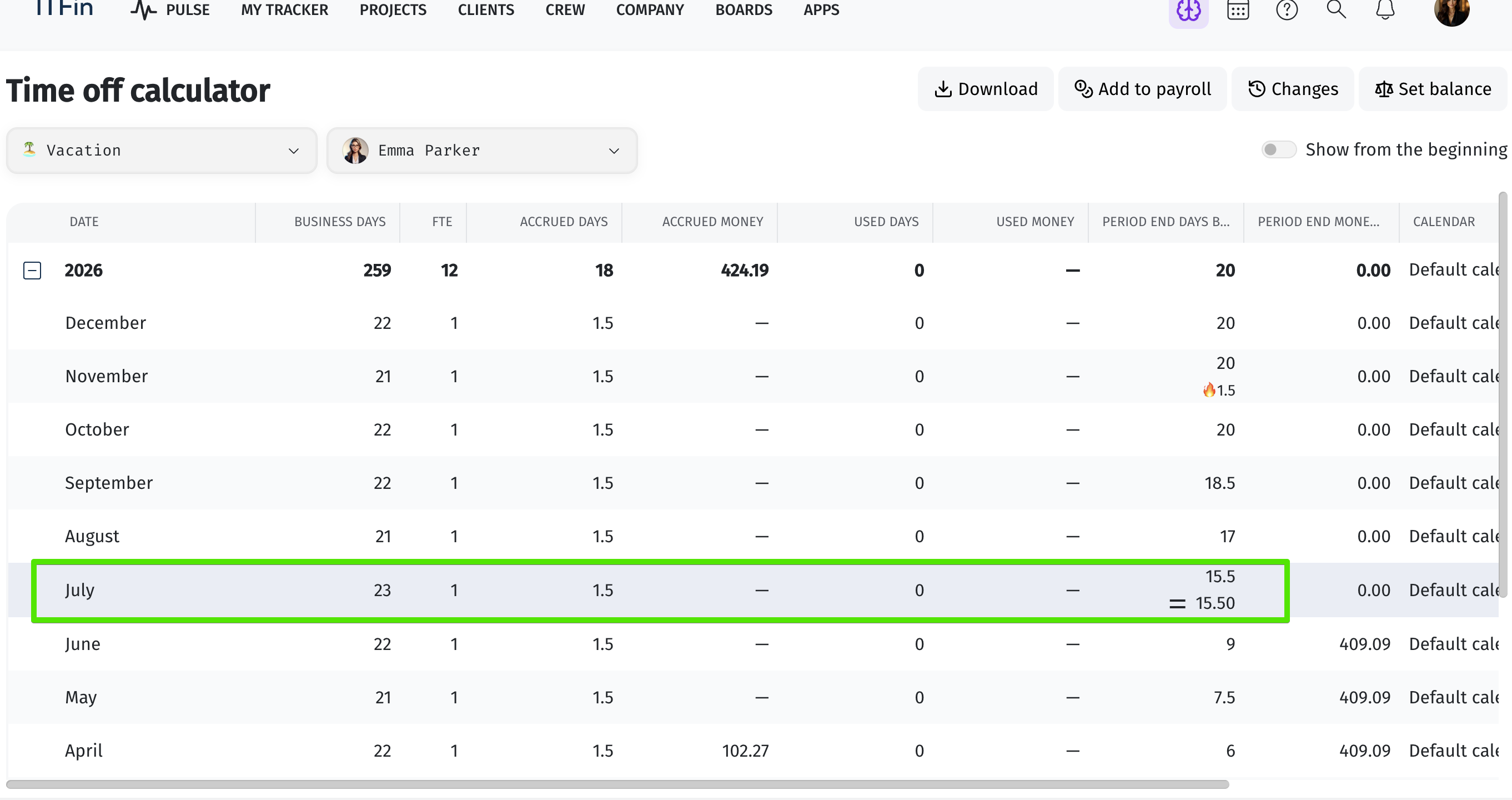
After returning to the Vacation Accrual Details, you can see that the additional vacation days have been applied to July, while the accrual for August remains unchanged.
Manual balance adjustments are marked with an (=) symbol.
The change history displayed below also records who manually updated the balance and when the change was made.
▶️ Scenario 2: Deduct 2 vacation days from an employee’s balance
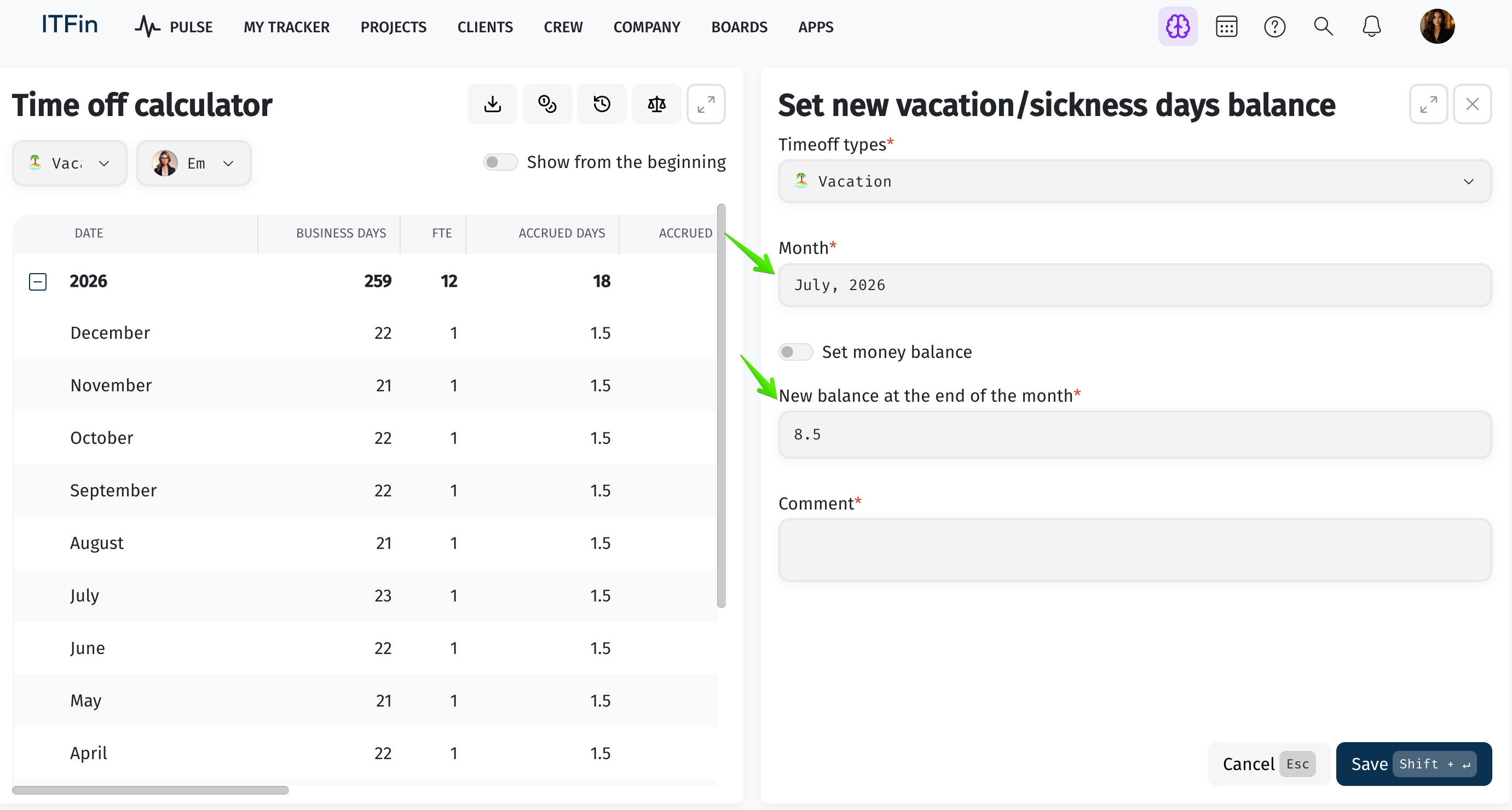
The process is the same. In the Time-off Calculator, use the Set Balance button and enter the employee’s updated balance for the end of the previous month, subtracting the required number of days.
10.50 − 2 = 8.50 days
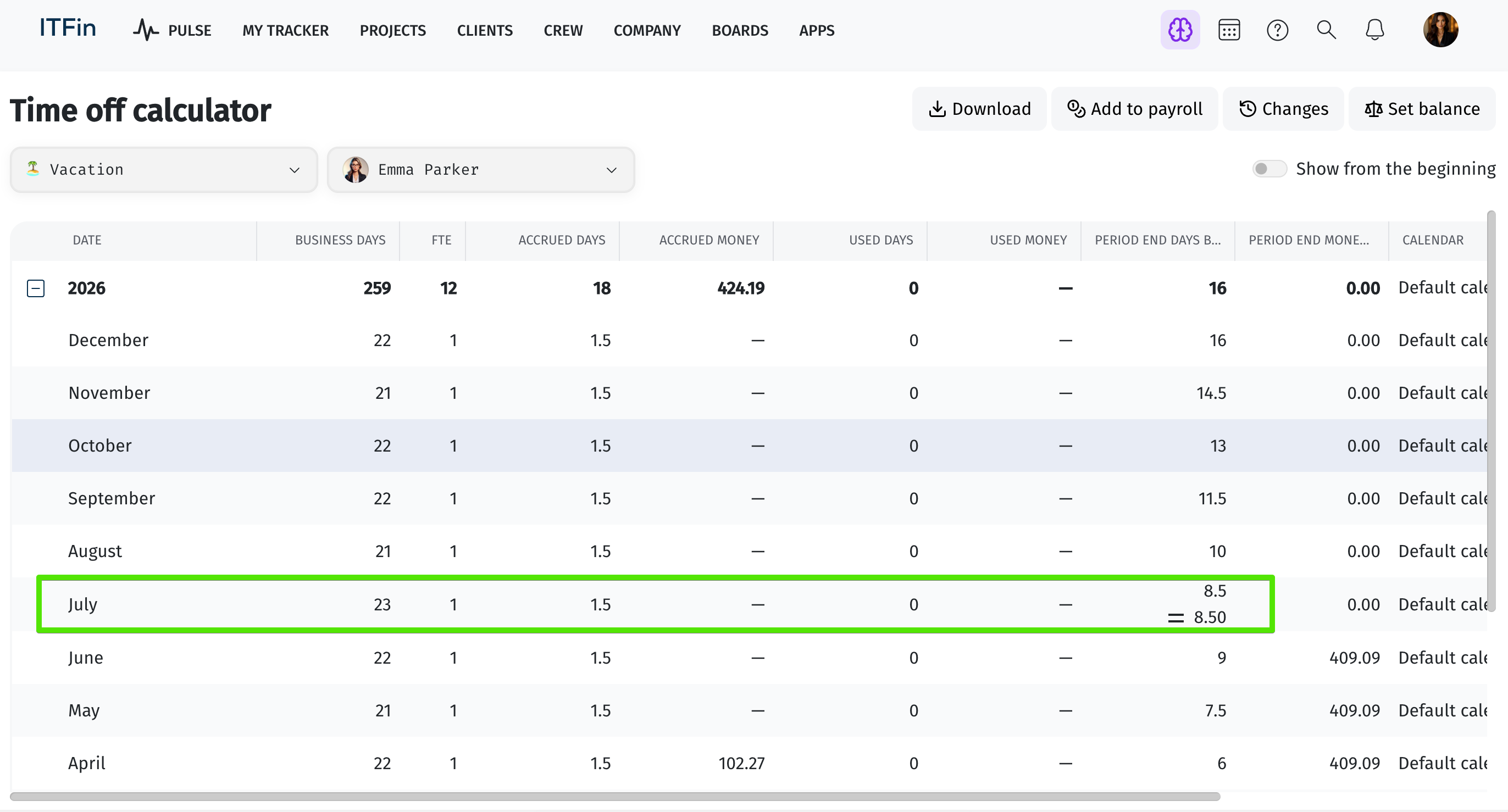
After saving the changes, you’ll see that 2 vacation days have been deducted from the employee’s balance at the end of July.
If needed, you can also edit or delete manual balance adjustments in the Changes section.
How can I calculate compensation for an employee working on projects with different hourly rates?
In ITFin, an employee can have only one active compensation record for a given period of time.
For employees with an Hourly compensation type, a single hourly rate is applied to all tracked hours across all projects. For example, if an employee’s hourly rate is $15, every tracked hour on every project will be paid at $15/hour.
If a developer works on multiple projects with different hourly rates, this scenario can be handled using Overtime entries.
Let’s look at the following example.
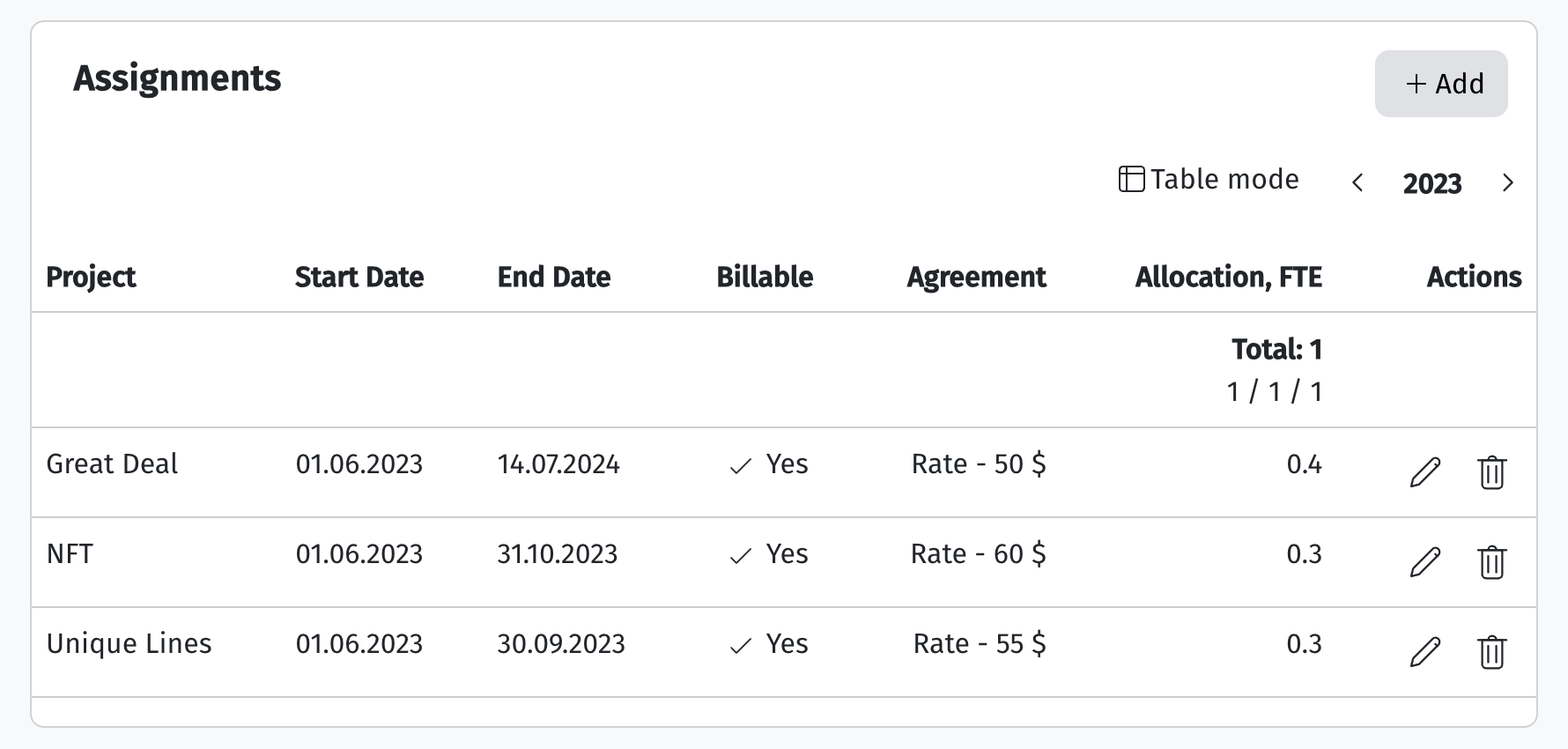
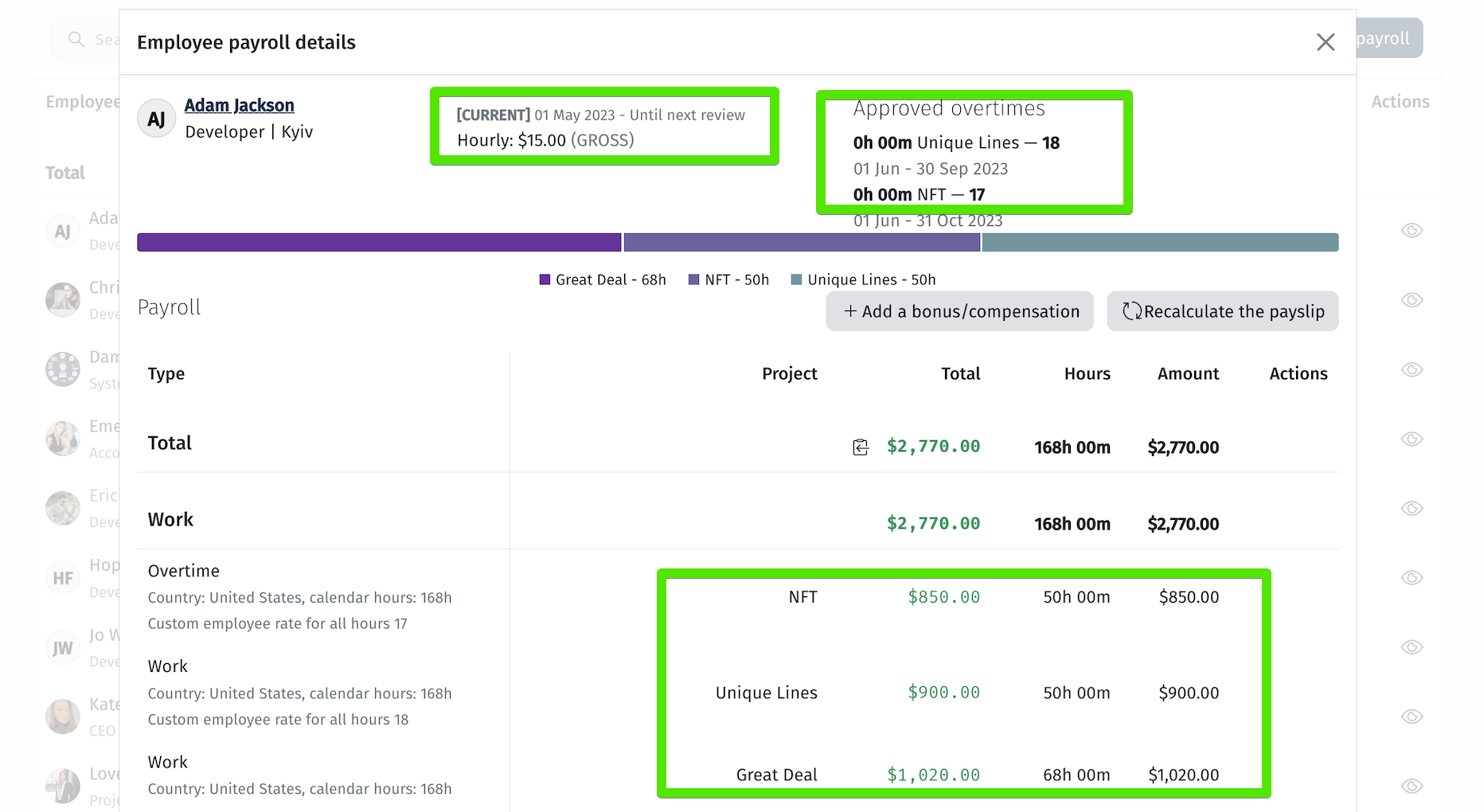
The employee is allocated to three projects:
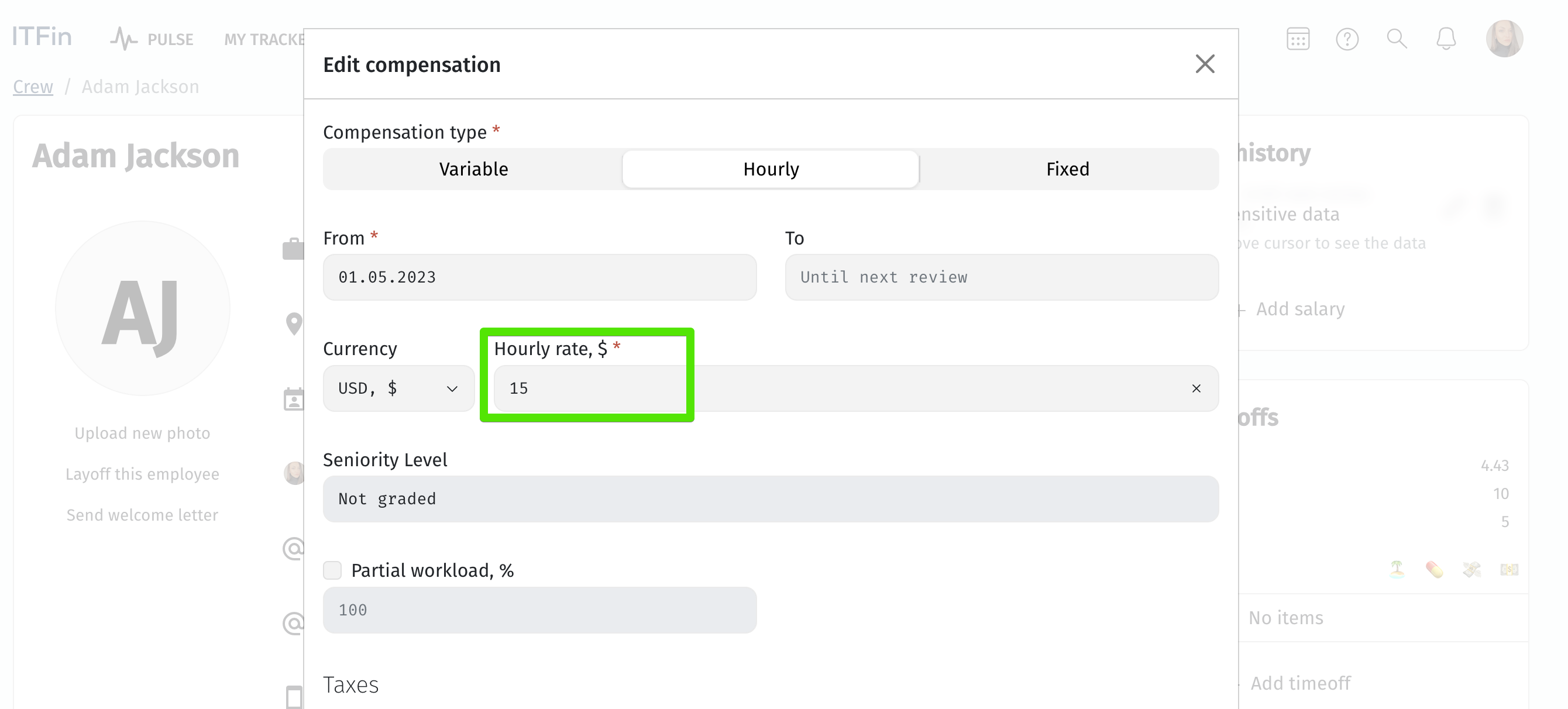
In the employee’s profile, set the compensation rate to match one of the active projects. In this example, use the Great Deal project with an hourly rate of $15.
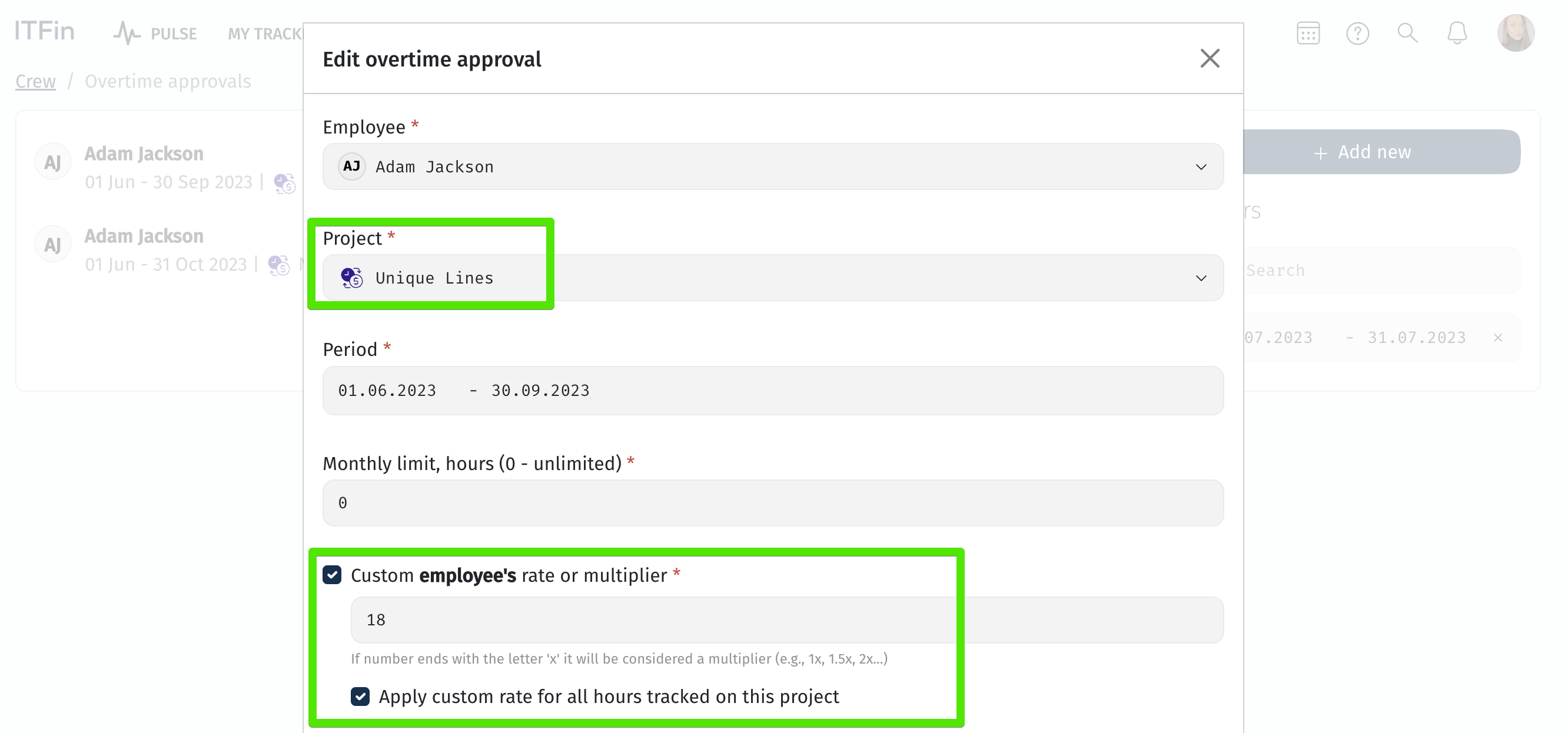
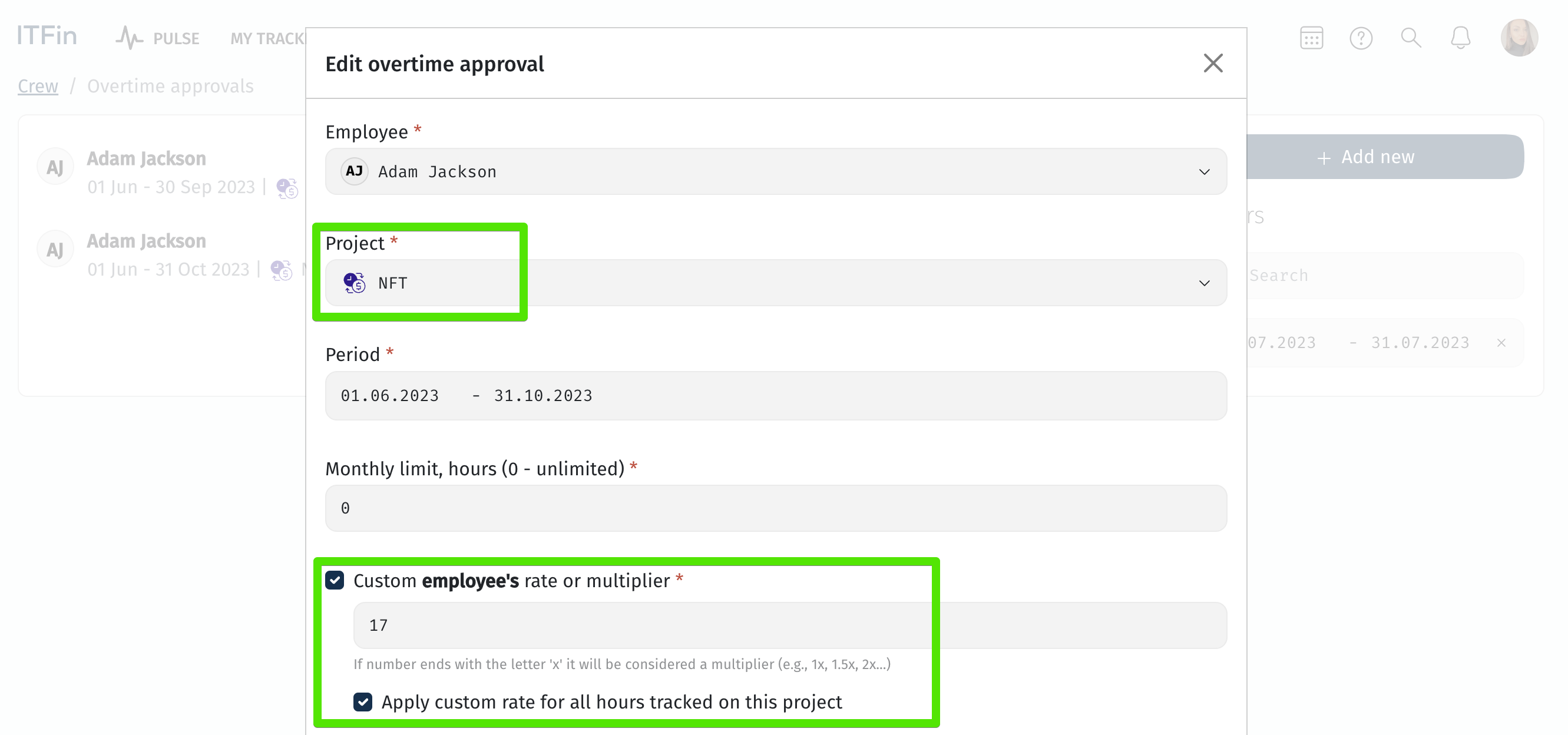
For the remaining two projects, create Overtime requests and specify a custom hourly rate for each of them.
▶️ Project 1
▶️ Project 2
After that, the employee tracks time across different projects, and during payroll calculation, the hours worked on each project are paid according to the custom hourly rates specified in the corresponding overtime requests.
If an employee is terminated in the current month but their salary is paid in the following month, should the final settlement be processed on the termination date?
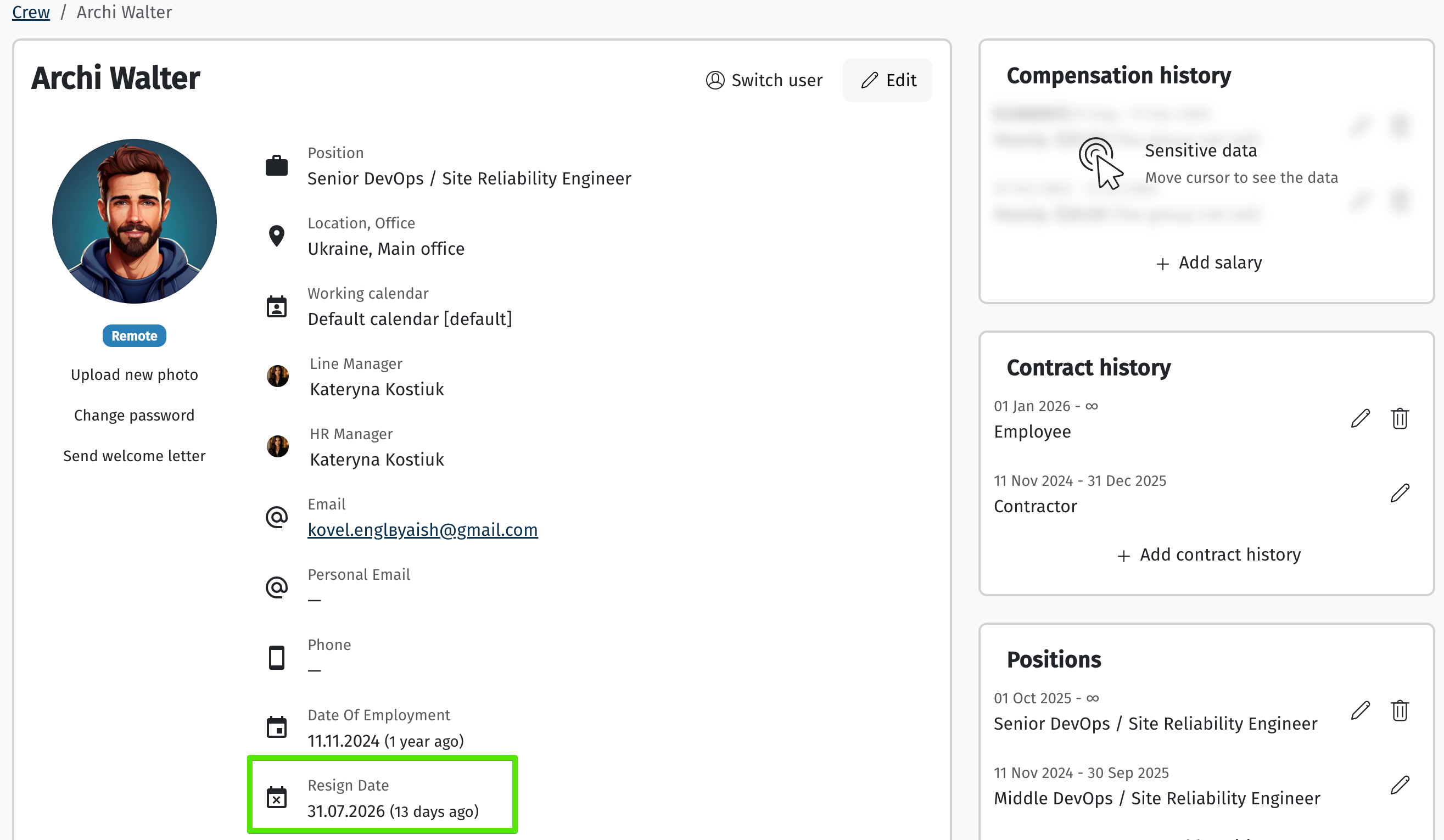
Let’s look at an example where an employee is terminated on July 31, while the company’s payroll is paid by the 15th of the following month.
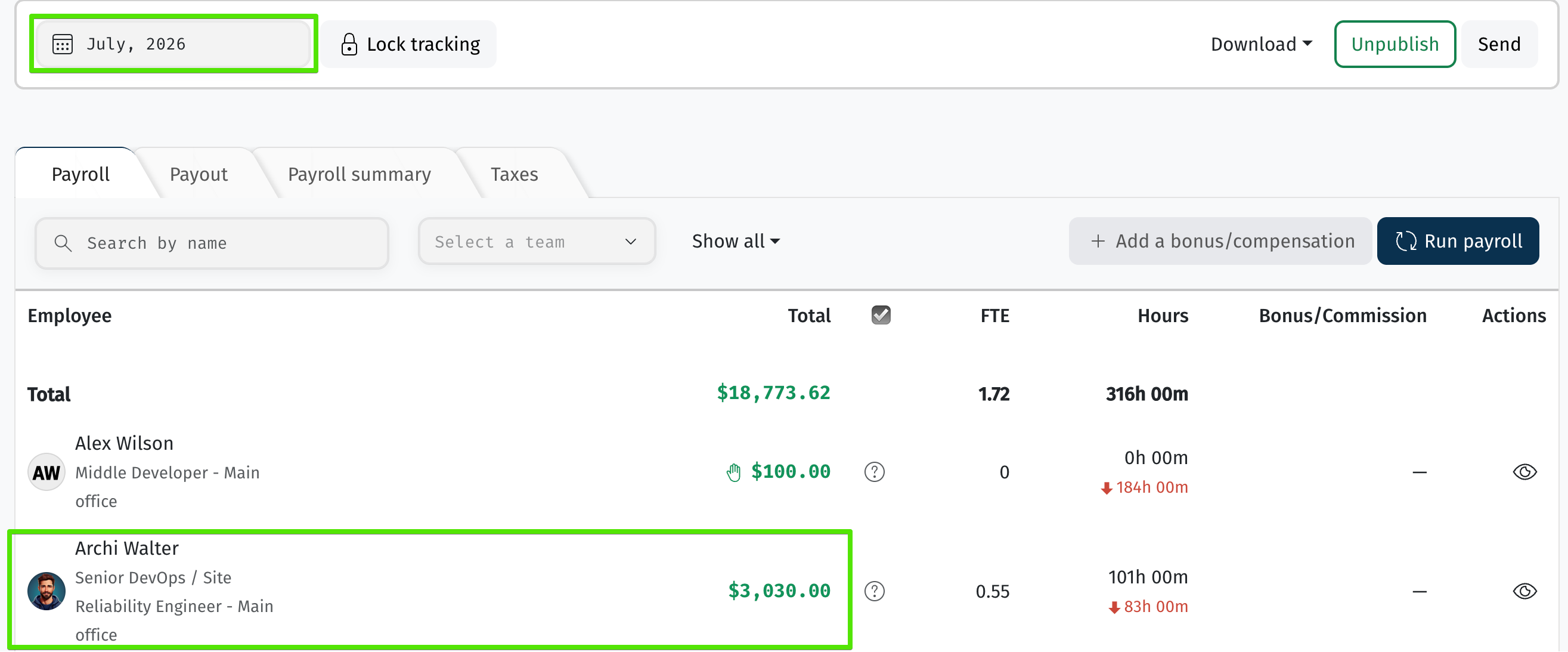
In ITFin, payroll is always calculated for a specific payroll period. Even if the salary is paid on August 15, the payroll includes only the compensation accrued for the selected period—in this case, July.
In the example below, the highlighted employee was terminated on July 31. Although the payment date is August 15, the employee still appears in the July payroll, since that is the period for which the salary is being calculated.
How can I add compensation for unused vacation days when terminating an employee?
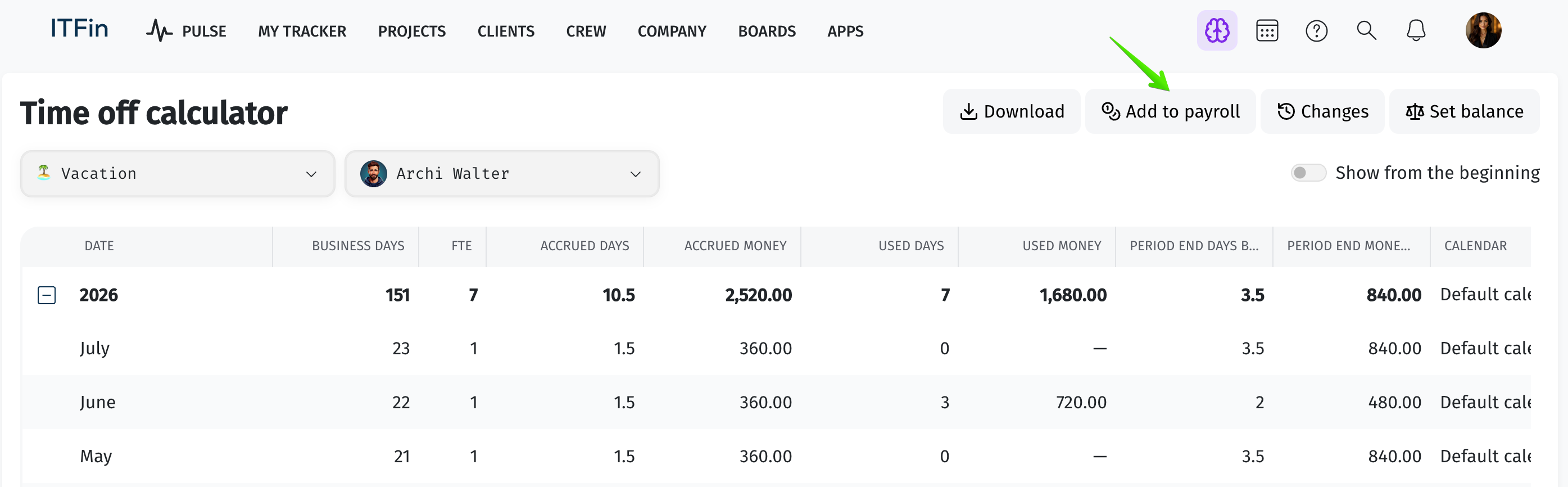
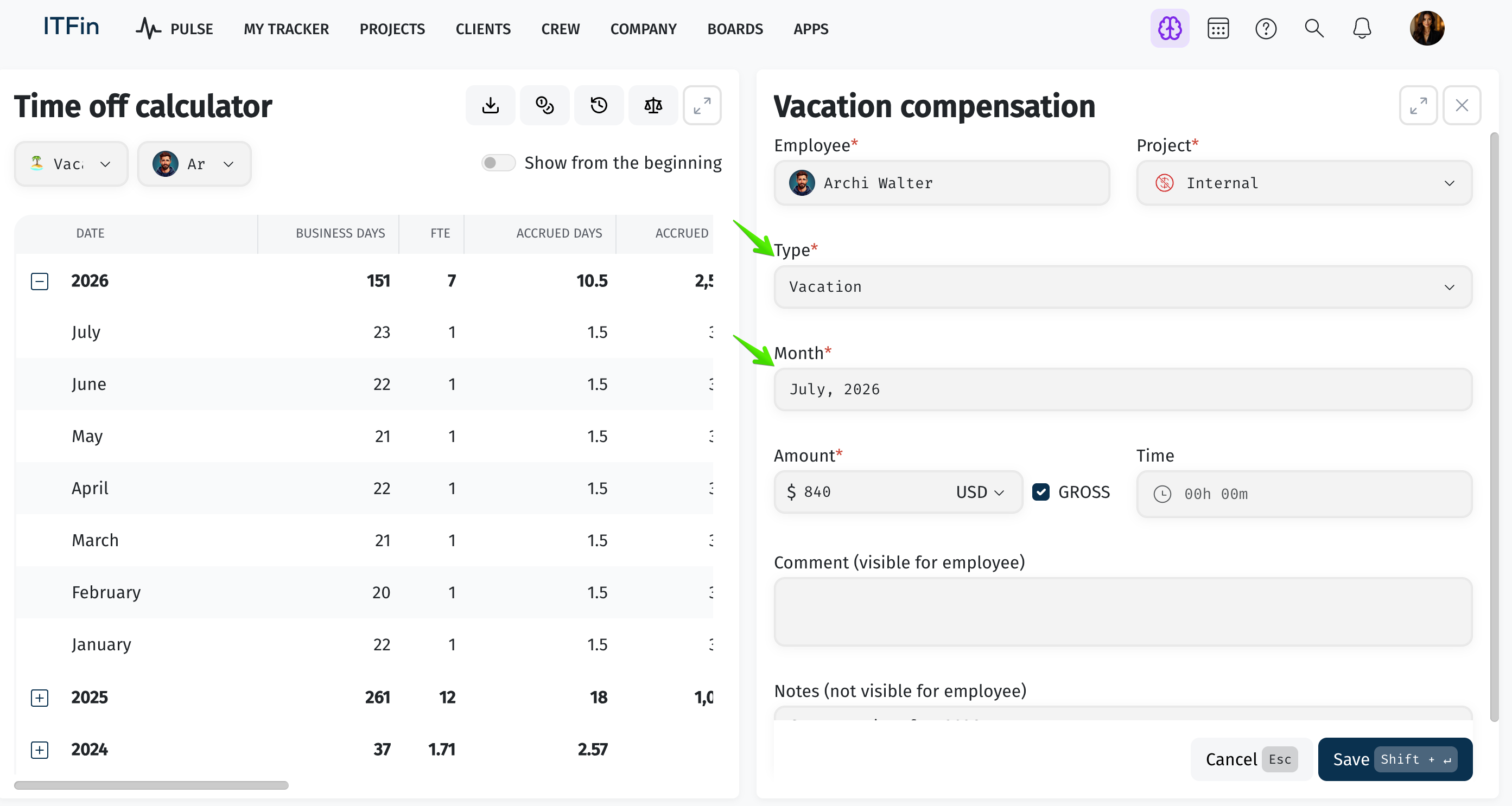
To compensate an employee for unused vacation days, go to Team → Time-off Calculator, select the relevant employee, and verify that they have unused vacation days remaining in their balance.
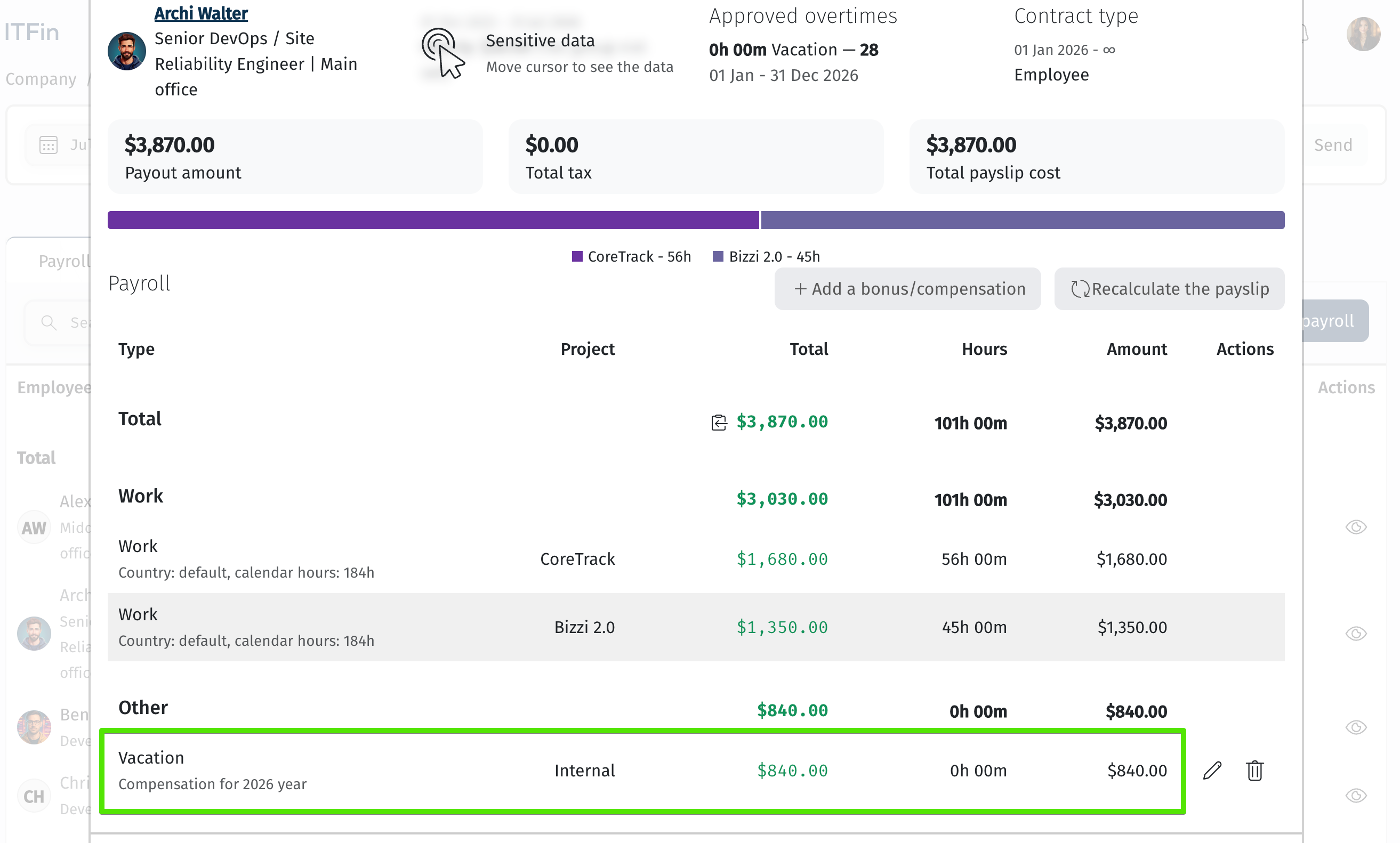
Then click Add to Payroll to include compensation for the unused vacation days in the employee’s payroll statement.
In the modal window, you can specify the compensation details: select the compensation type, choose the month in which the payment should be made, enter the net or gross amount, and add a comment if needed.
After opening the Payroll Statement, you’ll see that the compensation you just added is already included in the employee’s payroll.